# 3 Ways to Refactor Your Code in IntelliJ IDEA
> Simplifying your code has advantages, including improving readability, tackling technical debt, and managing ever-changing requirements.
- URL: https://foojay.io/today/3-ways-to-refactor-your-code-in-intellij-idea/
- Published: 2021-01-12
- Authors: Helen Scott
- Categories: IntelliJ IDEA
- Originally published at: https://blog.jetbrains.com/idea/2020/12/3-ways-to-refactor-your-code-in-intellij-idea/
In this article, we're going to look at 3 ways to refactor your code in IntelliJ IDEA.
Simplifying your code has lots of advantages, including improving readability, tackling technical debt, and managing ever-changing requirements. The three types of refactoring we will look at in this blog are:
* Extracting and Inlining
* Change Signature
* Renaming
The code samples are available in the [IntelliJ IDEA sample code repository](https://github.com/JetBrains/intellij-samples), specifically the [PlanetExtractions](https://github.com/JetBrains/intellij-samples/blob/main/standard-java/src/main/java/com/jetbrains/refactoring/PlanetExtractions.java) and [Planet](https://github.com/JetBrains/intellij-samples/blob/main/standard-java/src/main/java/com/jetbrains/refactoring/Planet.java) class.
## Extracting and Inlining
The first way to simplify your code is to extract it. There are five types of extract refactoring that you can do in IntelliJ IDEA that we will look at in this blog:
* [Extract Method](https://www.jetbrains.com/help/idea/extract-method.html)
* [Extract Constant](https://www.jetbrains.com/help/idea/extract-constant.html)
* [Extract Field](https://www.jetbrains.com/help/idea/extract-field.html)
* [Extract Variable](https://www.jetbrains.com/help/idea/extract-variable.html)
* [Extract Parameter](https://www.jetbrains.com/help/idea/extract-parameter.html)
### Extract Method
The switch statement in this method isn't in keeping with the rest of the method so let's [extract it](https://www.jetbrains.com/help/idea/extract-method.html).
```java
public class PlanetExtractions {
Planet myPlanet = new Planet("earth");
// I'm using PlanetExtractions to get the facts for my country
// I'm using planetextractions to get the facts for my country
private void printPlanetFacts(final String country) {
System.out.println("Planet name is " + myPlanet.getName());
System.out.println("Current season is " + myPlanet.getCountryWeather());
System.out.println("Number of times the planet rotates around the sun is " + 365);
System.out.println("Number of characters in planet name = " + myPlanet.getName().length());
switch (myPlanet.getCountryWeather()) {
case "Spring" -> System.out.println("The weather is warm in the UK");
case "Summer" -> System.out.println("The weather is hot in the UK");
case "Autumn" -> System.out.println("The weather is cool in the UK");
default -> System.out.println("The weather is cold in the UK");
}
}
}
```
In IntelliJ IDEA 2020.3 this process has been simplified. You need to select the full block of code that is going to be extracted, and then you can use **⌘⌥M** on macOS, and **Ctrl** +**Alt** +**M** on Windows and Linux, to extract the method.
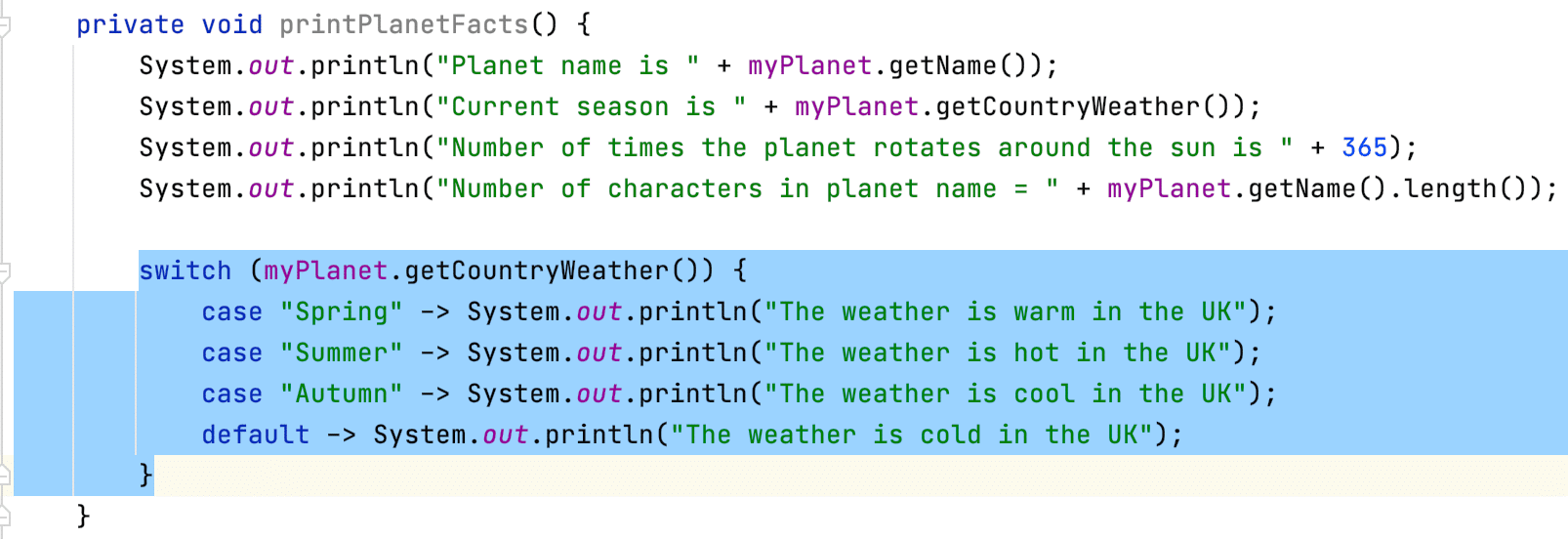
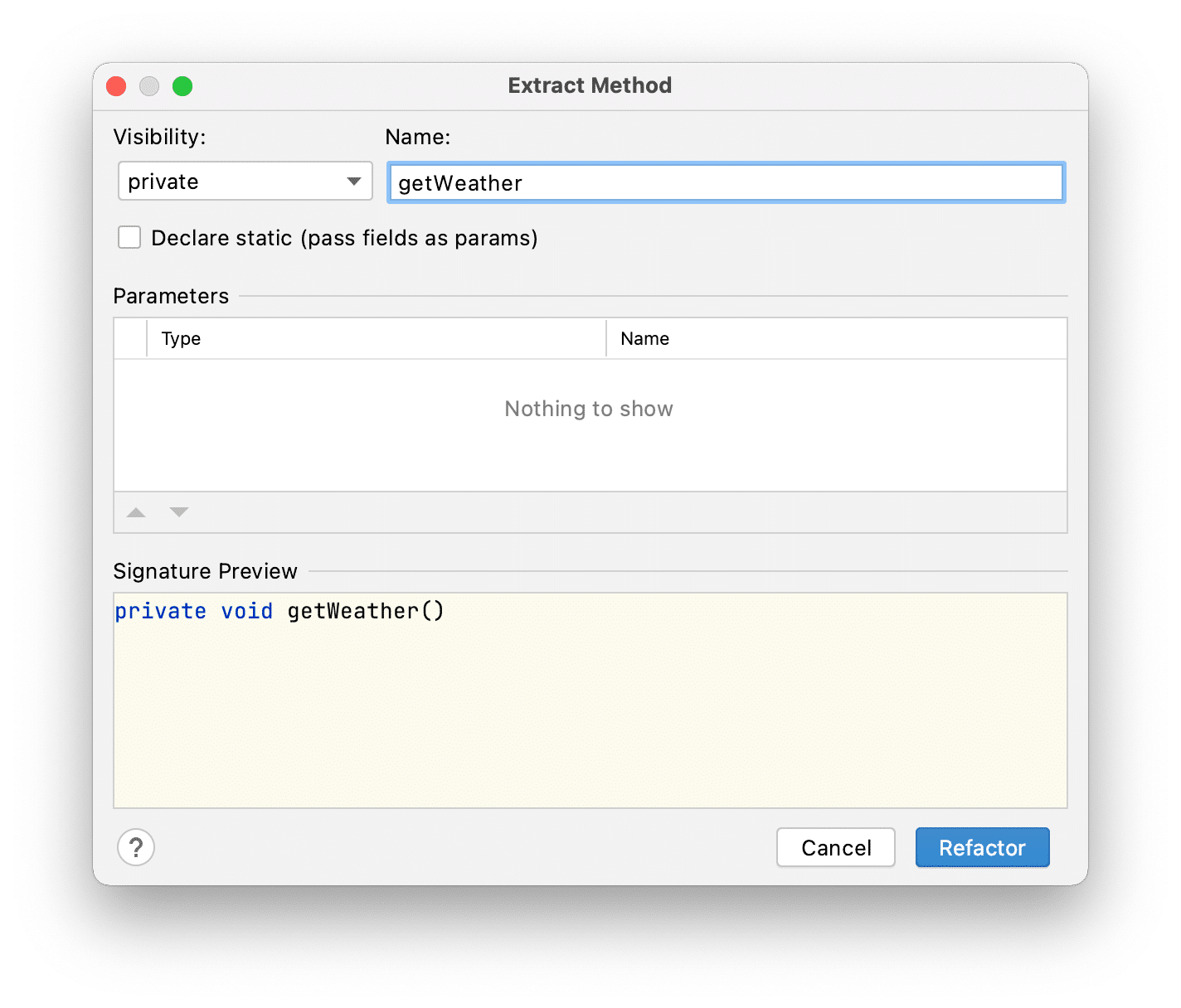
We can give the new method a name, such as `getWeather()` and IntelliJ IDEA will replace the original logic with a call to our new method:
```java
public class PlanetExtractions {
public static final int NUMBER_OF_DAYS_IN_A_YEAR = 365;
Planet myPlanet = new Planet("earth");
private String theWeatherIs = "The weather is";
// I'm using PlanetExtractions to get the facts for my country
// I'm using planetextractions to get the facts for my country
private void printPlanetFacts(final String country) {
System.out.println("Planet name is " + myPlanet.getName());
System.out.println("Current season is " + myPlanet.getCountryWeather());
System.out.println("Number of times the planet rotates around the sun is " + NUMBER_OF_DAYS_IN_A_YEAR);
System.out.println("Number of characters in planet name = " + myPlanet.getName().length());
getWeather();
}
private void getWeather() {
switch (myPlanet.getCountryWeather()) {
case "Spring" -> System.out.println("The weather is warm in the UK");
case "Summer" -> System.out.println("The weather is hot in the UK");
case "Autumn" -> System.out.println("The weather is cool in the UK");
default -> System.out.println("The weather is cold in the UK");
}
}
}
```
You can get additional options for extract Method by using the same shortcut again.
**Tip** : You can navigate to the declaration or usages of a method by using **⌘B** on macOS, or **Ctrl** +**B** on Windows and Linux.
### Extract Constant
We can extract the number 365 to a constant in this line of code because the earth always takes about 365 days to complete its rotation around the sun:
```java
System.out.println("Number of times the planet rotates around the sun is " + 365);
```
We can select the number and then use **⌘⌥C** on macOS, and **Ctrl** +**Alt** +**C** on Windows and Linux, to extract it to a constant. We can give it a name such as `NUMBER_OF_DAYS_IN_A_YEAR`. IntelliJ IDEA creates a new public static final constant at the start of our class:
```java
public static final int NUMBER_OF_DAYS_IN_A_YEAR = 365;
```
IntelliJ IDEA also replaces the original line of code with the new constant:
```java
System.out.println("Number of times the planet rotates around the sun is " + NUMBER_OF_DAYS_IN_A_YEAR);
```
### Extract Field
The phrase "The Weather is" is repeated four times in the method that we extracted, so let's extract that to a field:
```java
private void getWeather() {
switch (myPlanet.getCountryWeather()) {
case "Spring" -> System.out.println("The weather is warm in the UK");
case "Summer" -> System.out.println("The weather is hot in the UK");
case "Autumn" -> System.out.println("The weather is cool in the UK");
default -> System.out.println("The weather is cold in the UK");
}
}
```
You need to select `The weather is ` and then you can use **⌘⌥F** on macOS, or **Ctrl** +**Alt** +**F** on Windows and Linux, to extract it to a field. In the Introduce Field dialog, we can select to initialise this field in the Field declaration, give it a name such as `theWeatherIs` and select to replace all four occurrences of it in the code.
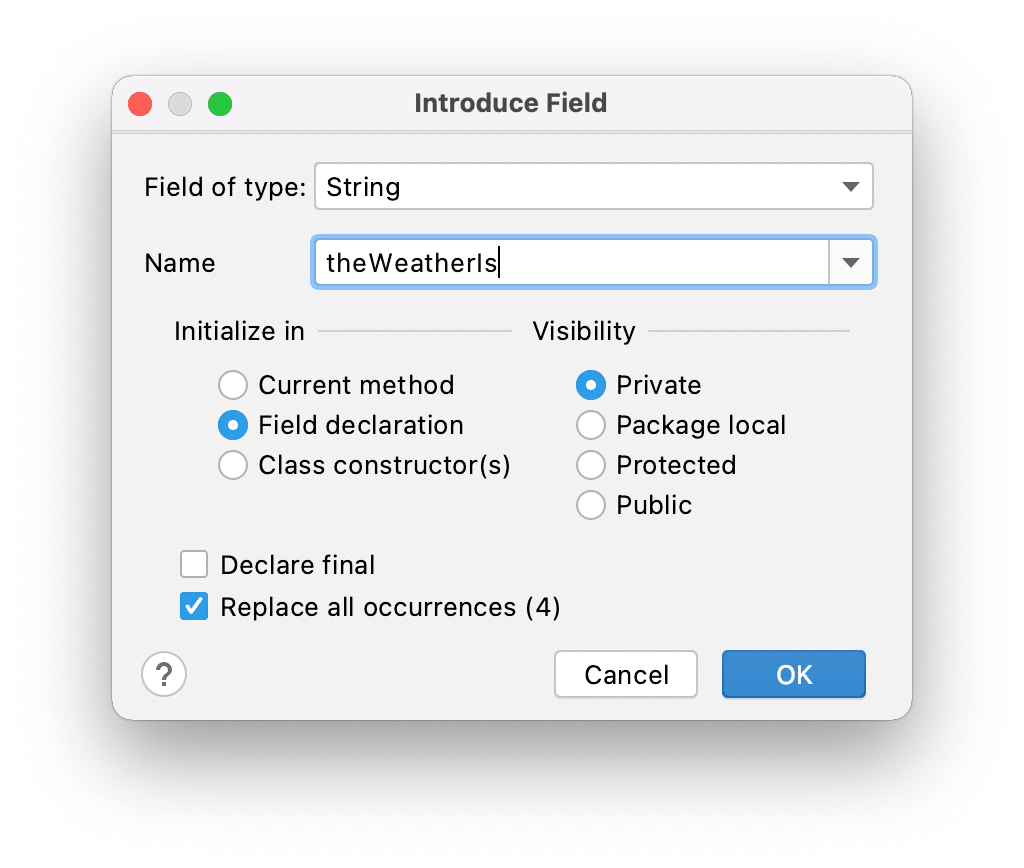
When we press **OK**, IntelliJ IDEA creates a new field at the top of our class:
`String theWeatherIs = "The weather is";`
IntelliJ IDEA also updates the method with the new field:
```java
private void getWeather() {
switch (myPlanet.getCountryWeather()) {
case "Spring" -> System.out.println(theWeatherIs + " warm in the UK");
case "Summer" -> System.out.println(theWeatherIs + " hot in the UK");
case "Autumn" -> System.out.println(theWeatherIs + " cool in the UK");
default -> System.out.println(theWeatherIs + " cold in the UK");
}
}
```
### Extract Variable
Chained methods like this can be harder to understand, so let's refactor it into a separate variable:
`int planetNameLength = myPlanet.getName().length();`
You can place your cursor in the chained method call and use the arrow keys to choose how much you want to extract to a new variable.
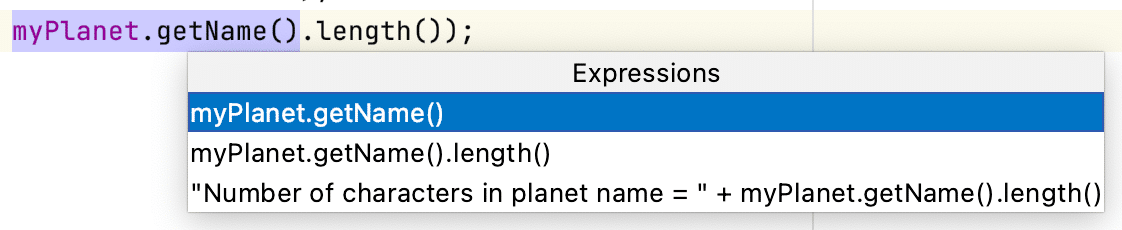
Let's extract the `myPlanet.getName().length()` portion. We can use **⌘⌥V** on macOS, and **Ctrl** +**Alt** +**V** on Windows and Linux to extract it to a variable and name it `planetNameLength`. Now we have a local variable for this calculation:
`System.out.println("Planet name is " + myPlanet.getName().length());`
IntelliJ IDEA has also created our new variable:
`int planetNameLength = myPlanet.getName().length();`
...and replaced our code with the new variable:
`System.out.println("Number of characters in planet name = " + planetNameLength);`
### Extract Parameter
Let's extract the country `UK` in this code and pass it in as a parameter called `country`:
```java
private void getWeather() {
switch (myPlanet.getCountryWeather()) {
case "Spring" -> System.out.println(theWeatherIs + " warm in the UK");
case "Summer" -> System.out.println(theWeatherIs + " hot in the UK");
case "Autumn" -> System.out.println(theWeatherIs + " cool in the UK");
default -> System.out.println(theWeatherIs + " cold in the UK");
}
}
```
To do that, let's select `UK` and use **⌘⌥P** on macOS and **Ctrl** +**Alt** +**P** on Windows and Linux. We can give it a name, such as `country`. We can then ask IntelliJ IDEA to replace all four occurrences and select **Refactor**. IntelliJ IDEA updates our method signature arguments:
`getWeather("UK");`
... and replaces all four occurrences of it in the text:
```java
private void getWeather(String country) {
switch (myPlanet.getCountryWeather()) {
case "Spring" -> System.out.println(theWeatherIs + " warm in the " + country);
case "Summer" -> System.out.println(theWeatherIs + " hot in the " + country);
case "Autumn" -> System.out.println(theWeatherIs + " cool in the " + country);
default -> System.out.println(theWeatherIs + " cold in the " + country);
}
}
```
### Extract Summary
The shortcuts for **extract** refactorings have symmetry which can help you to remember them.
For macOS, they are **⌘⌥** + the first letter of the thing you want to extract, and for Windows and Linux they are **Ctrl** +**Alt** + the first letter of the thing you want to extract:
* **M**ethods
* **C**onstants
* **F**ields
* **V**ariables
* **P**arameters
Yes, I know that was technically five in one, but I really wanted to show you the symmetry in shortcuts because it helped me to learn faster. Before we move on to our second major refactoring type, what if you change your mind, and you what you to *inline* something you previously extracted?
**Inline**
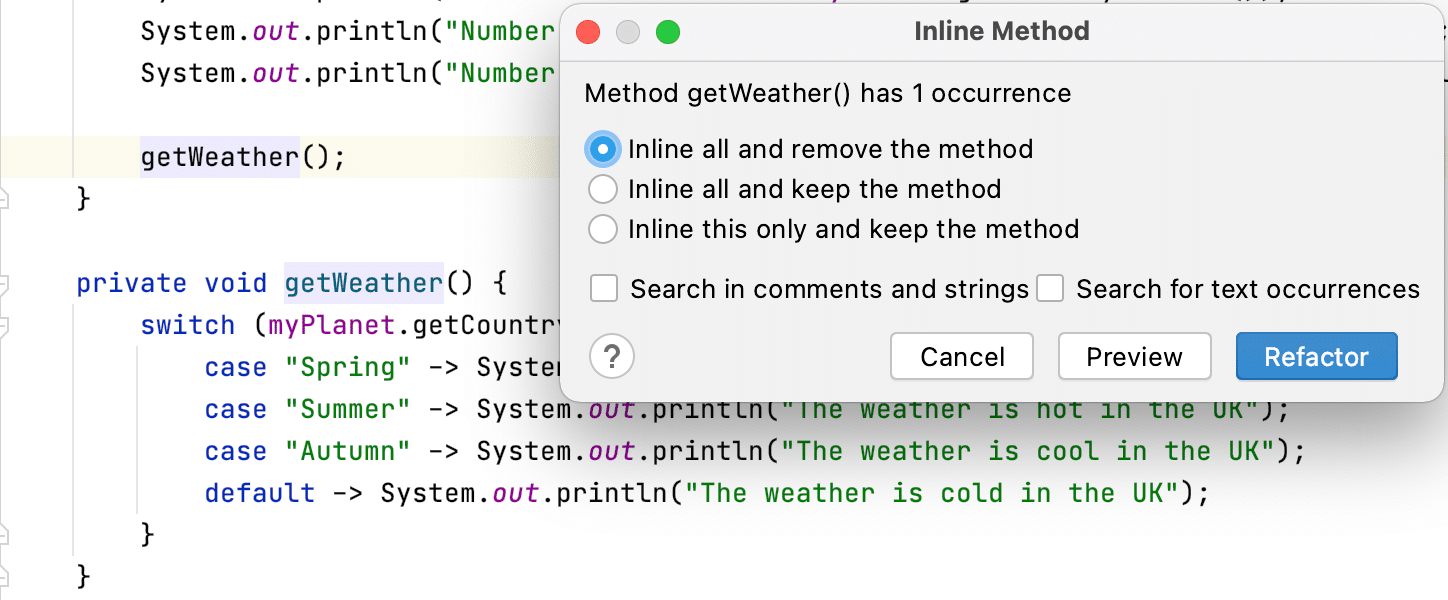
IntelliJ IDEA has one shortcut to inline all of these five types of refactoring. For macOS that is **⌘⌥N** , and for Windows and Linux that is **Ctrl** +**Alt** +**N**. This will inline methods, constants, fields, variables, and parameters.
For example, we can inline the method that we previously extracted by placing our caret on `getWeather()` and using the above shortcut:
## Change Signature
We often need to [change the signature](https://www.jetbrains.com/help/idea/change-signature-dialog.html) of a method. IntelliJ IDEA can help us with this process, and the impact of the change on your wider code base. Using our [Planet](https://github.com/JetBrains/intellij-samples/blob/main/standard-java/src/main/java/com/jetbrains/refactoring/Planet.java) class, let's refactor this constructor to take the season as an argument as well as the name:
```java
public Planet(String name) {
this.name = name;
}
```
We can use **⌘F6** on macOS, or **Ctrl** +**F6** on Windows and Linux, to change the signature of the method. Now we're in the Change Signature dialog; we can use **⌘N** on macOS or **Alt** +**Ins** on Windows and Linux, to add a second string and give it a default value like 'summer'. If we don't give it this default value, then any objects that call this method will need to be manually updated after the refactoring.
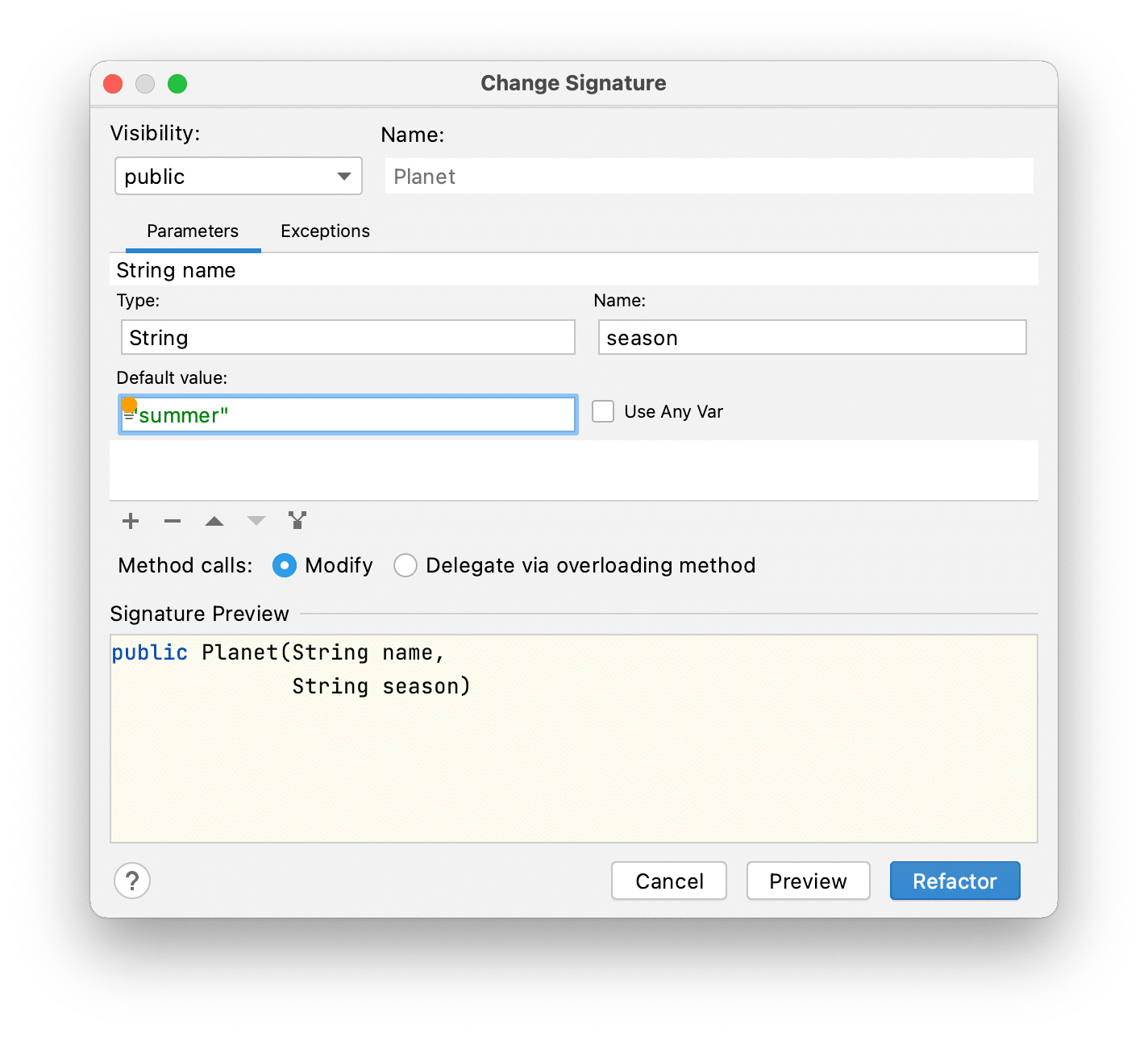
IntelliJ IDEA will show you where the issues are if you choose to do this. When we complete the refactoring and look back at our [PlanetExtractions](https://github.com/JetBrains/intellij-samples/blob/main/standard-java/src/main/java/com/jetbrains/refactoring/PlanetExtractions.java) class, we can see that the method signature has been updated here as well with the default value that we provided:
```java
Planet myPlanet = new Planet("earth", "summer");
```
## Rename
Our last type of refactoring that can help you to simplify your code is [renaming](https://www.jetbrains.com/help/idea/rename-refactorings.html). We frequently need to rename files, or aspects of our code.
Let's rename our class from `PlanetExtractions` to `PlanetFacts`. Note that we have two comments in the code, specifically:
// I'm using PlanetExtractions to get the facts for my country
// I'm using planetextractions to get the facts for my country
For macOS, Windows and Linux the shortcut for rename is **Shift+F6**. Your caret needs to be on the thing that you want to rename.
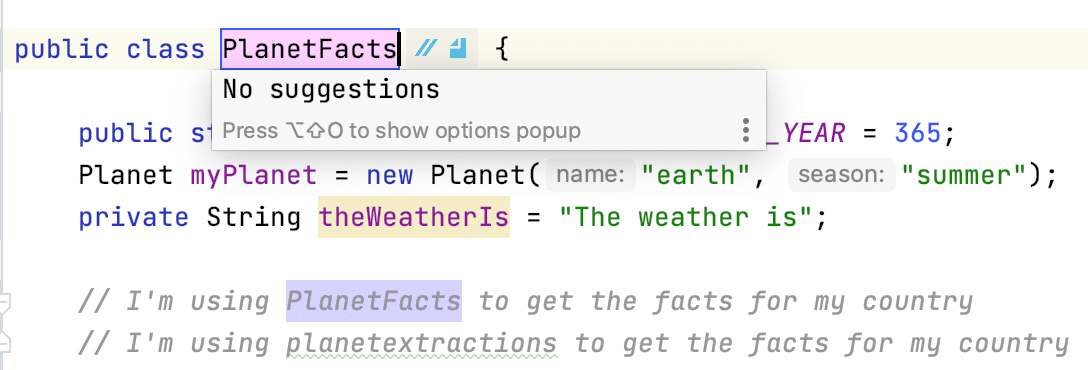
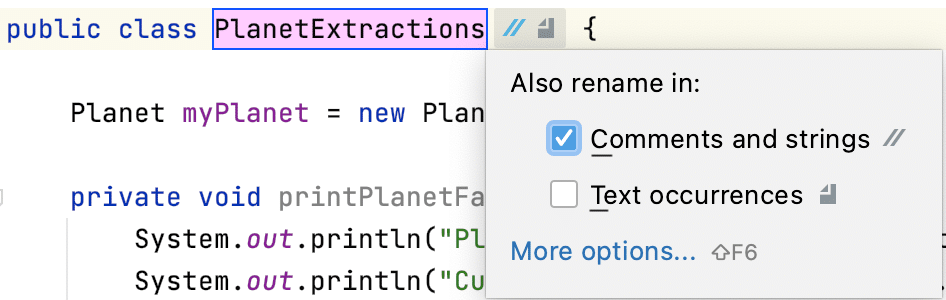
If you then press **⌥⇧O** on macOS, or **Alt** +**Shift** +**O** on Windows and Linux, you can expand the new inlay hints.
The first icon will change to blue if we select the checkbox for *Comments and strings* . The second icon will change to blue if we select the checkbox for *Text occurrences*. These options match exactly, including the case.
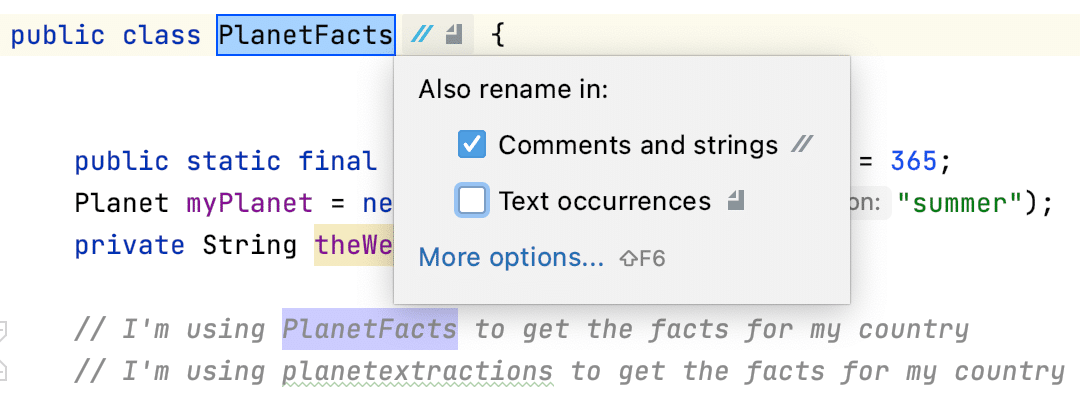
We just want to find instances in comments this time. When we press **Return** twice, IntelliJ IDEA allows us to preview the refactor before we carry them out. When you're happy with the changes, you can press **Do Refactor**. The comment where the case matches is updated as well as the class name.
IntelliJ IDEA will also make changes everywhere that uses that class name, for example, anything that calls that class, and tests that test it. If you have properties files or XML files that use this text, IntelliJ IDEA may also show you those depending upon the options you selected.
**Tip** : If you hold down **⌥** on macOS, or **Alt** on Windows and Linux, IntelliJ IDEA will underline one of the letters for each button/option that you can press. You can then press that letter to activate the button/option, for example **C** and **T** here.
## Summary
These are just some of the refactorings that you can do in IntelliJ IDEA to help you to simplify your code:
**Extracting and Inlining**
* [Extract Method](https://www.jetbrains.com/help/idea/extract-method.html) **⌘⌥M** / **Ctrl** +**Alt** +**M**
* [Extract Constant](https://www.jetbrains.com/help/idea/extract-constant.html) **⌘⌥C** / **Ctrl** +**Alt** +**C**
* [Extract Field](https://www.jetbrains.com/help/idea/extract-field.html) **⌘⌥F** / **Ctrl** +**Alt** +**F**
* [Extract Variable](https://www.jetbrains.com/help/idea/extract-variable.html) **⌘⌥V** / **Ctrl** +**Alt** +**V**
* [Extract Parameter](https://www.jetbrains.com/help/idea/extract-parameter.html) **⌘⌥P** / **Ctrl** +**Alt** +**P**
* [Inline Anything](https://www.jetbrains.com/help/idea/inline.html) **⌘⌥N** / **Ctrl** +**Alt** +**N**
**Change Method Signature**
* [Change Signature](https://www.jetbrains.com/help/idea/change-signature-dialog.html) **⌘F6** / **Ctrl** +**F6**
**Renaming**
* [Renaming](https://www.jetbrains.com/help/idea/rename-refactorings.html) **Shift+F6**
**Posted with permission:**
* **Original blog** :
* **Associated screencast** :