# Augmenting the client with Vue.js
> In this article, I take my first steps in augmenting an SSR app with Vue.
- URL: https://foojay.io/today/augmenting-the-client-with-vue-js/
- Published: 2024-10-14
- Authors: Nicolas Frankel
- Categories: Developer Tools, Spring, Tools
- Originally published at: https://blog.frankel.ch/ajax-ssr/3/
In my [previous article](https://foojay.io/today/a-short-history-of-ajax-and-ssr/), I laid the ground to build upon; now is the time to start "for real".
I heard a lot of [Vue.js](https://vuejs.org/). Additionally, a friend who transitioned from developer to manager told me good things about Vue, which further piqued my interest. I decided to have a look at it: it will be the first "lightweight" JavaScript framework I'll study - from the point of view of a newbie, which I am.
## Laying out the work
I explained WebJars and Thymeleaf in the last article. Here's the setup, server- and client-side.
### Server-side
Here is how I integrate both in the POM:
```xml
org.springframework.bootspring-boot-starter-weborg.springframework.bootspring-boot-starter-thymeleaforg.webjarswebjars-locator0.52org.webjars.npmvue3.4.34
```
1. Spring Boot itself; I decided on the regular, non-reactive approach
2. Spring Boot Thymeleaf integration
3. WebJars locator, to avoid specifying the Vue version on the client-side
4. Vue, finally!
I'm using the Kotlin Router and Bean DSLs on the Spring Boot side:
```kotlin
fun vue(todos: List) = router { //1
GET("/vue") {
ok().render("vue", mapOf("title" to "Vue.js", "todos" to todos)) //2-3
}
}
```
1. Pass a static list of `Todo` objects
2. See below
3. Pass the model to Thymeleaf
If you're used to developing APIs, you're familiar with the `body()` function; it returns the payload directly, probably in JSON format. The `render()` passes the flow to the view technology, in this case, Thymeleaf. It accepts two parameters:
1. The view's name. By default, the path is `/templates` and the prefix is `.html`; in this case, Thymeleaf expects a view at `/templates/vue.html`
2. A model map of key-value pairs
### Client-side
Here's the code on the HTML side:
```html
```
1. [Axios](https://axios-http.com/) helps making HTTP requests
2. Vue itself
3. Our client-side code
4. Set the data
As explained in last week's article, one of Thymeleaf's benefits is that it allows both static file rendering and server-side rendering. To make the magic work, I specify a client-side path, *i.e.* , `src`, and a server-side path, *i.e.* , `th:src`.
## The Vue code
Now, let's dive into the Vue code.
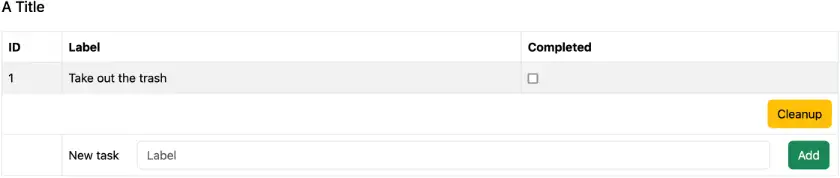
We want to implement several features:
1. After the page load, the page should display all `Todo` items
2. When clicking on a `Todo` completed checkbox, it should set/unset the `completed` attribute
3. When clicking on the *Cleanup* button, it deletes all completed `Todo`
4. When clicking on the *Add* button, it should add a `Todo` to the list of `Todo` with the following values:
* `id`: Server-side computed ID as the max of all other IDs plus 1
* `label`: value of the *Label* field for `label`
* `completed`: set to `false`
### Our first steps into Vue
The first step is to bootstrap the framework. We have already set up the reference for our custom `vue.js` file above.
```javascript
document.addEventListener('DOMContentLoaded', () => { //1
// The next JavaScript code snippets will be inside the block
}
```
1. Run the block when the DOM has finished loading
The next step is to let Vue manage part of the page. On the HTML side, we must decide which top-level part Vue manages. We can choose an arbitrary `
` and change it later if need be.
```html
```
On the JavaScript side, we create an *app* , passing the CSS selector of the previous HTML `
`.
```javascript
Vue.createApp({}).mount('#app');
```
At this point, we launch Vue when the page loads, but nothing visible happens.
The next step is to create a Vue *template*. A Vue template is a regular HTML \`\` managed by Vue. You can define Vue in Javascript, but I prefer to do it on the HTML page.
Let's start with a root template that can display the title.
```html
{{ title }}
```
1. Set the ID for easy binding
2. Use the `title` property; it remains to be set up
On the JavaScript side, we must create the managing code.
```javascript
const TodosApp = {
props: ['title'], //1
template: document.getElementById('todos-app').innerHTML,
}
```
1. Declare the `title` property, the one used in the HTML template
Finally, we must pass this object when we create the app:
```javascript
Vue.createApp({
components: { TodosApp }, //1
render() { //2
return Vue.h(TodosApp, { //3
title: window.vueData.title, //4
})
}
}).mount('#app');
```
1. Configure the component
2. Vue expects the `render()` function
3. `h()` for *hyperscript* creates a virtual node out of the object and its properties
4. Initialize the `title` property with the value generated server-side
At this point, Vue displays the title.
### Basic interactions
At this point, we can implement the action when the user clicks on a checkbox: it needs to be updated in the server-side state.
First, I added a new nested Vue template for the table that displays the `Todo`. To avoid lengthening the article, I'll avoid describing it in detail. If you're interested, have a look at the [source code](https://github.com/ajavageek/compare-frontends/blob/master/src/main/resources/static/vue.js).
Here's the starting line template's code, respectively JavaScript and HTML:
```javascript
const TodoLine = {
props: ['todo'],
template: document.getElementById('todo-line').innerHTML
}
```
```html
{{ todo.id }}
{{ todo.label }}
```
1. Display the `Todo` id
2. Display the `Todo` label
3. Check the box if its `completed` attribute is `true`
Vue allows event handling via the `@` syntax.
```html
```
Vue calls the template's `check()` function when the user clicks on the line. We define this function in a `setup()` parameter:
```javascript
const TodoLine = {
props: ['todo'],
template: document.getElementById('todo-line').innerHTML,
setup(props) { //1
const check = function (event) { //2
const { todo } = props
axios.patch( //3
`/api/todo/${todo.id}`, //4
{ checked: event.target.checked } //5
)
}
return { check } //6
}
}
```
1. Accept the `props` array, so we can later access it
2. Vue passes the `event` that triggered the call
3. Axios is a JavaScript lib that simplifies HTTP calls
4. The server-side *must* provide an API; it's outside the scope of this post, but feel free to check the source code.
5. JSON payload
6. We return all defined functions to make them accessible from HTML
### Client-side model
In the previous section, I made two mistakes:
* I didn't manage any local model
* I didn't use the HTTP response's call method
We will do that by implementing the next feature, which is the cleanup of completed tasks.
We now know how to handle events via Vue:
```html
```
On the `TodosApp` object, we add a function of the same name:
```javascript
const TodosApp = {
props: ['title', 'todos'],
components: { TodoLine },
template: document.getElementById('todos-app').innerHTML,
setup() {
const cleanup = function() { //1
axios.delete('/api/todo:cleanup').then(response => { //1
state.value.todos = response.data //2-3
})
}
return { cleanup } //1
}
}
```
1. As above
2. Axios offers automated JSON conversion of the HTTP call
3. `state` is where we store the *model*
In Vue's semantics, the Vue model is a wrapper around data that we want to be *reactive* . Reactive means two-way binding between the view and the model. We can make an existing value reactive by passing it to the `ref()` method:
> In Composition API, the recommended way to declare reactive state is using the `ref()` function.
>
> `ref()` takes the argument and returns it wrapped within a ref object with a .value property.
>
> To access refs in a component's template, declare and return them from a component's `setup()` function.
>
> -- [Declaring Reactive State](https://vuejs.org/guide/essentials/reactivity-fundamentals.html)
Let's do it:
```javascript
const state = ref({
title: window.vueData.title, //1-2
todos: window.vueData.todos, //1
})
createApp({
components: { TodosApp },
setup() {
return { ...state.value } //3-4
},
render() {
return h(TodosApp, {
todos: state.value.todos, //5
title: state.value.title, //5
})
}
}).mount('#app');
```
1. Get the data set in the HTML page, via Thymeleaf, as explained above
2. We change the way we set the `title`. It's not necessary since there's no two-way binding - we don't update the title client-side, but I prefer to keep the handling coherent across all values
3. Return the refs, as per Vue's expectations
4. Look, ma, I'm using the JavaScript spread operator
5. Configure the object's attributed from the `state`
At this point, we have a *reactive* client-side model.
On the HTML side, we use the relevant Vue attributes:
```html
```
1. Loop over the list of `Todo` objects
2. The `is` attribute is crucial to cope with the way the browser parses HTML. See [Vue documentation](https://vuejs.org/api/built-in-special-attributes#is) for more details
I've described the corresponding template above.
### Updating the model
We can now implement a new feature: add a new `Todo` from the client. When clicking on the *Add* button, we read the *Label* field value, send the data to the API, and refresh the model with the response.
Here's the updated code:
```javascript
const TodosApp = {
props: ['title', 'todos'],
components: { TodoLine },
template: document.getElementById('todos-app').innerHTML,
setup() {
const label = ref('') //1
const create = function() { //2
axios.post('/api/todo', { label: label.value }).then(response => {
state.value.todos.push(response.data) //3
}).then(() => {
label.value = '' //4
})
}
const cleanup = function() {
axios.delete('/api/todo:cleanup').then(response => {
state.value.todos = response.data //5
})
}
return { label, create, cleanup }
}
}
```
1. Create a reactive wrapper around the title whose scope is limited to the function
2. The `create()` function proper
3. Append the new JSON object returned by the API call to the list of `Todo`
4. Reset the field's value
5. Replace the whole list when deleting; the mechanism is the same
On the HTML side, we add a button and bind to the `create()` function. Likewise, we add the *Label* field and bind it to the model.
```html
```
Vue binds the `create()` function to the HTML button. It does call it asynchronously and refreshes the reactive `Todo` list with the new item returned by the call. We do the same for the *Cleanup* button, to remove checked `Todo` objects.
Note that I didn't intentionally implement any error-handling code to avoid making the code more complex than necessary. I'll stop here as we gained enough insights for a first experience.
## Conclusion
In this artic;e, I took my first steps in augmenting an SSR app with Vue. It was pretty straightforward. The biggest issue I encountered was for Vue to replace the line template: I didn't read the documentation extensively and missed the `is` attribute.
However, I had to write quite a few lines of JavaScript, though I used Axios to help me with HTTP calls and didn't manage errors.
In the next article, I'll implement the same features with Alpine.js.
The complete source code for this article can be found on [GitHub](https://github.com/ajavageek/compare-frontends).
**Go further:**
* [Vue.js](https://vuejs.org/)
*Originally published at [A Java Geek](https://blog.frankel.ch/ajax-ssr/3/) on September 22^nd^, 2024*