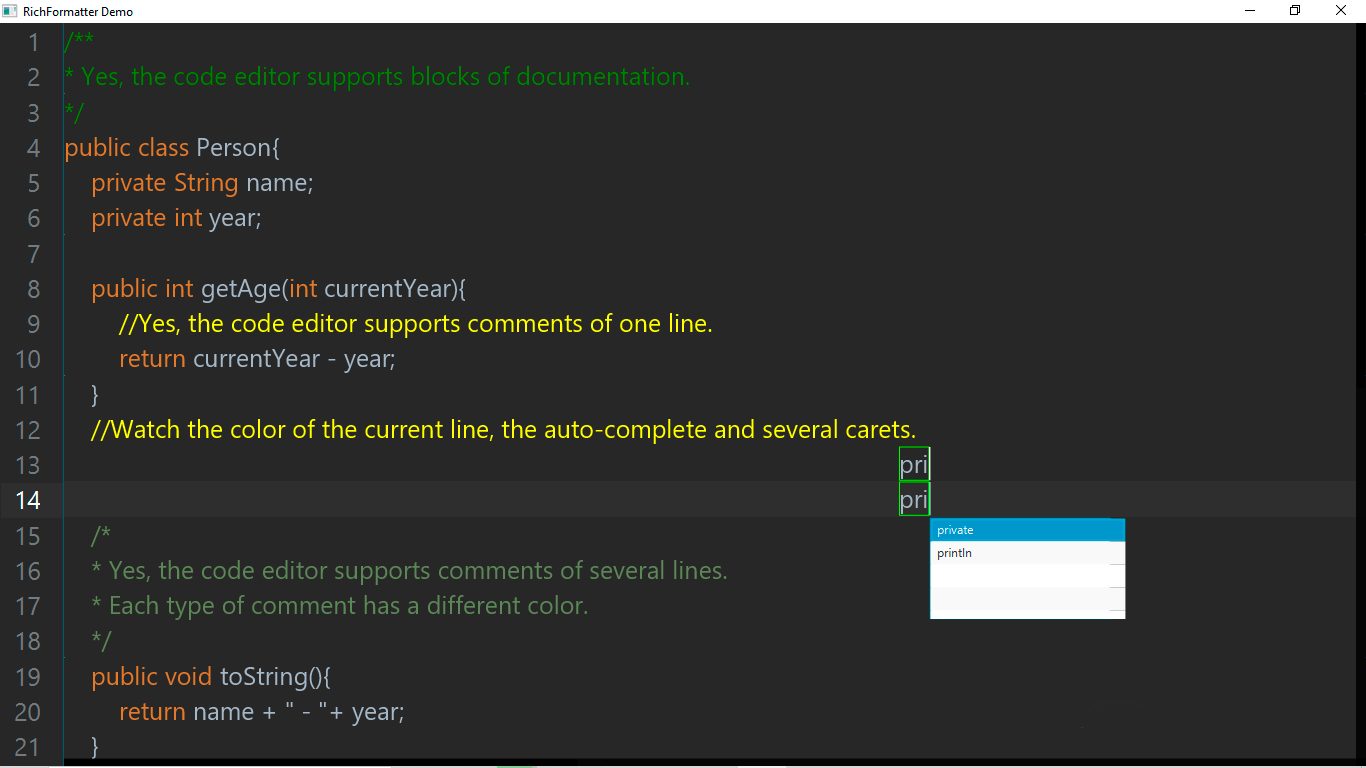
Building a Code Editor Control in JavaFX
JavaFX doesn’t ship with a code-editor control, and TextArea isn’t built to grow into one — no per-character styling, no gutter, no virtualization tuned for thousands of lines. Building a real one means going back to Control + Skin and constructing the editor surface yourself. This post walks through several pieces of a custom editor control.
The core idea: two virtualized lists, not one
The instinctive design is a single ListView<String>, one row per line, with each row containing both the line number and the code. This approach has a drawback: when the user scrolls horizontally, the line numbers disappear.
The fix is to split the editor into two separate virtualized ListViews that share the same backing data:
private final ListView<String> listView = new ListView<String>();
private final ListView<String> gutterListView = new ListView<String>();
listView renders the code itself; gutterListView renders only line numbers and marker icons (errors, warnings). Both are backed by the same ObservableList<String> of lines, so they always show the same number of rows in the same order. The gutter list never scrolls horizontally, so it stays visually fixed while the code scrolls underneath — the same layout you’d recognize from IntelliJ.
Keeping two lists in vertical sync
Two independent ListViews need their vertical scroll positions locked together manually. Each ListView has an internal ScrollBar, reachable once the skin has installed:
private void setupVerticalScrollSync() {
    ScrollBar mainVBar = findVerticalScrollBar(listView);
    ScrollBar gutterVBar = findVerticalScrollBar(gutterListView);
    mainVBar.valueProperty().bind(gutterVBar.valueProperty());
    gutterVBar.setValue(mainVBar.getValue());
}
The gutter’s own scrollbars are hidden and disabled entirely — the user only ever interacts with the main list’s scrollbar; the gutter just follows.
Rendering the gutter: GutterCell
Each row of gutterListView is a custom ListCell<String> that ignores the line’s text content and just needs its index:
private class GutterCell extends ListCell<String> {
    private final Label lineNumberLabel = new Label();
    private final HBox gutterIconBox = new HBox(2);

    @Override
    protected void updateItem(String item, boolean empty) {
        super.updateItem(item, empty);
        if (empty || item == null) {
            setGraphic(null);
            return;
        }
        setGraphic(rowBox);
        int idx = getIndex();
        lineNumberLabel.setText(String.valueOf(idx + 1));
        gutterIconBox.getChildren().setAll(buildGutterIcons(idx, item));
        boolean isCaretLine = idx == caretLine();
        rowBox.setStyle(isCaretLine
            ? "-fx-background-color: " + toWeb(getSkinnable().getCurrentLineColor())
            : "-fx-background-color: " + toWeb(getSkinnable().getLineColor()));
    }
}
getIndex() is what makes the whole approach work: since ListCell is reused as the user scrolls (that’s the point of virtualization), the cell can’t cache its own line number — it has to read it fresh from its position every time updateItem fires. The same index also drives the “current line” highlight, comparing it against the caret’s line.
Syntax highlighting without a lexer
The highlighting here isn’t a real lexer — it’s a registered keyword-to-color map, checked against every word-like token in a line:
private List<Text> buildHighlightedFlowChildren(String lineText) {
    Map<String, Color> keywords = getSkinnable().getKeywordColors();
    Matcher m = WORD_PATTERN.matcher(lineText);
    int last = 0;
    List<Text> parts = new ArrayList<Text>();
    while (m.find()) {
        if (m.start() > last) {
            parts.add(plainText(lineText.substring(last, m.start())));
        }
        String word = m.group();
        Text wordText = plainText(word);
        Color c = keywords.get(word);
        if (c != null) {
            wordText.setFill(c);
        }
        parts.add(wordText);
        last = m.end();
    }
    if (last < lineText.length()) {
        parts.add(plainText(lineText.substring(last)));
    }
    return parts;
}
Each line is split into a list of Text nodes — some plain, some colored — and dropped into a TextFlow, which lays them out inline as if they were one continuous run of text. The keyword map itself is exposed publicly, so consumers of the control register their own vocabulary and colors rather than the control hardcoding a language:
editor.addKeywords(Color.web("#CC7832"), "public", "class", "return", "if", "else");It’s a deliberately simple approach — a single regex pass, no tokenizer state machine, no context-awareness (a keyword inside a string literal gets colored too).
Bracket matching
Every time the caret moves, the skin checks whether it’s sitting next to a bracket character and, if so, searches for its pair:
private void updateBracketMatch() {
    getSkinnable().matchBracketAProperty().set(-1);
    getSkinnable().matchBracketBProperty().set(-1);
    String text = getSkinnable().getText();
    if (text.isEmpty()) {
        return;
    }
    int checkPos = -1;
    if (isBracket(text.charAt(caretIndex))) {
        checkPos = caretIndex;
    } else if (isBracket(text.charAt(caretIndex - 1))) {
        checkPos = caretIndex - 1;
    }
    if (checkPos < 0) {
        return;
    }
    char c = text.charAt(checkPos);
    int match = OPEN_BRACKETS.indexOf(c) >= 0
        ? findMatchingForward(text, checkPos, c, closeFor(c))
        : findMatchingBackward(text, checkPos, c, openFor(c));
    if (match >= 0) {
        getSkinnable().matchBracketAProperty().set(checkPos);
        getSkinnable().matchBracketBProperty().set(match);
    }
}
The search itself (findMatchingForward/findMatchingBackward) is a plain depth-counting scan — it walks the text tracking nesting depth, ignoring everything except bracket characters. It doesn’t know about string literals or comments, so a stray bracket inside a quoted string can throw it off. That’s a deliberate trade-off: a full tokenizer would fix it, but a single linear scan is enough for a visual pairing aid in a business-app editor.
The two offsets it produces (matchBracketA/matchBracketB) are read back during rendering — each LineCell checks whether either offset falls within its own line and, if so, draws a small outlined rectangle around that character.
Multi-cursor editing
Multi-cursor support piggybacks on the mouse handlers, gated behind the Alt key. A plain Alt+Click adds a new caret; an Alt+drag instead starts a column (box) selection — and the code doesn’t know which one it is until the mouse is released:
private void handleMousePressed(MouseEvent e) {
    if (e.isAltDown()) {
        // Might become a click (new cursor) or a drag (column selection) — resolved later.
        getSkinnable().altDragOccurredProperty().set(false);
        getSkinnable().columnSelectingProperty().set(true);
        // ...
        return;
    }
    // A plain click always collapses back to a single caret.
    extraCarets.clear();
}
handleMouseDragged flips altDragOccurred to true the moment the pointer actually moves, so by the time handleMouseReleased runs, it can tell the two cases apart:
private void handleMouseReleased(MouseEvent e) {
    if (columnSelecting && !altDragOccurred) {
        // No drag happened — treat this as a plain Alt+Click: add a cursor.
        int offset = offsetForMouse(e.getX(), e.getY());
        extraCarets.add(new CaretState(caretIndex, selectionAnchor));
        getSkinnable().caretIndexProperty().set(offset);
    }
    getSkinnable().columnSelectingProperty().set(false);
}
Each extra cursor is just a CaretState (caret offset + selection anchor) sitting in a plain list. Rendering them is cheap: LineCell already knows how to draw the primary caret from a text offset, so buildExtraCaretDecorations reuses that same math for every CaretState that happens to fall on the line currently being rendered. Editing with multiple cursors active runs every keystroke through a CaretEdit functional interface, applied once per caret, ordered from bottom to top of the document so that earlier edits don’t shift the offsets of carets still waiting their turn.
Undo/redo
Undo/redo works on whole-document snapshots rather than a diff/patch log — simpler to reason about, at the cost of memory for very large documents:
private void pushUndoState() {
    if (getSkinnable().isIsUndoRedoOperation()) return; // don't record undo/redo as new edits
    getSkinnable().getUndoStack().push(new EditorState(
        getSkinnable().getText(),
        getSkinnable().caretIndexProperty().get(),
        getSkinnable().selectionAnchorProperty().get()
    ));
    getSkinnable().getRedoStack().clear();
    if (getSkinnable().getUndoStack().size() > getSkinnable().getMAX_UNDO_STEPS()) {
        getSkinnable().getUndoStack().removeLast();
    }
}

private void undo() {
    if (getSkinnable().getUndoStack().isEmpty()) return;
    getSkinnable().getRedoStack().push(currentState());
    applyState(getSkinnable().getUndoStack().pop());
}
pushUndoState() is called at the start of every operation that mutates text — typing, pasting, indenting, accepting an autocomplete suggestion — and it guards itself with an isUndoRedoOperation flag so that applyState() (used by both undo and redo) doesn’t recursively push its own restoration onto the stack. Every push also clears the redo stack: once you make a new edit, the “future” that undo could have redone is gone, exactly like every mainstream editor. applyState() additionally clears extraCarets — undo/redo snapshots only ever track the primary caret, so restoring one collapses any active multi-cursor session.
Autocomplete
The autocomplete popup is a third ListView, shown inside a Popup, positioned against the caret’s actual on-screen location rather than anything fixed:
private void updateAutocomplete() {
    String currentWord = wordAt(getSkinnable().caretIndexProperty().get());
    if (currentWord.isEmpty()) {
        autocompletePopup.hide();
        return;
    }
    List<String> matches = new ArrayList<>();
    for (String s : getSkinnable().getAutocompleteSuggestions()) {
        if (s.toLowerCase().startsWith(currentWord.toLowerCase())
                && !s.equalsIgnoreCase(currentWord)) {
            matches.add(s);
        }
    }
    if (matches.isEmpty()) {
        autocompletePopup.hide();
        return;
    }
    autocompleteListView.setItems(FXCollections.observableArrayList(matches));
    autocompleteListView.getSelectionModel().selectFirst();
    // Find the on-screen cell for the caret's line, then position the popup under it.
    VirtualFlow<IndexedCell<String>> flow = getVirtualFlow();
    IndexedCell<String> cell = null;
    if (flow != null) {
        cell = flow.getCell(caretLine());
    }
    if (cell == null) {
        return;
    }
    Bounds cellBounds = cell.localToScreen(cell.getBoundsInLocal());
    autocompletePopup.show(listView, cellBounds.getMinX(), cellBounds.getMaxY());
}
The matching logic itself is intentionally simple — a case-insensitive prefix check against a flat list of registered suggestions, no fuzzy matching or ranking. What makes it feel native is the positioning: it walks the VirtualFlow to find the actual screen bounds of the caret’s current cell, the same lookup used elsewhere in the skin (word documentation, for instance, reuses this exact pattern). Accepting a suggestion (acceptAutocomplete()) replaces the partially typed word, pushes an undo state first, and — like a plain click — collapses any active multi-cursor state, since accepting a suggestion is a single-caret-intent operation.
Where this fits into a bigger editor
Line numbers, highlighting, bracket matching, multi-cursor editing, undo/redo, and autocomplete are only part of a much larger design — the same control also handles column selection, word-occurrence highlighting, quick documentation, and auto-close pairs, all built on this Control/Skin foundation. I cover the full implementation, along with a set of other controls, in my book, Skinning JavaFX Applications.
Found a mistake, or something to add? Edit this page on GitHub

Libán Bande González
Libán Bande González is a software developer, UX/UI designer and technical author. He builds a suite of JavaFX and SQL Server desktop business management applications for businesses. He is the author of the book 'Skinning JavaFX Applications'