Building a Swing LookAndFeel Without Extending BasicLookAndFeel
What is a “Look and Feel”? It is Java Swing’s way of dictating how its presented user interface appears and how it interacts with the user.
Java allows a “LookAndFeel” to be replaced. You might recognize the class named “MetalLookAndFeel”, which is Java’s classic cross platform appearance LookAndFeel, or “WindowsLookAndFeel”, used to make a Java desktop application look more like a native Windows application.
Both of those derive from the built in lower level “BasicLookAndFeel”, which defines common visuals and interactions. Those are fine if you want to have your Java desktop application look like the designs created perhaps in the 1980-1990 time frame. But what if you want your UI to look different to be more modern or to make your application stand out from the rest?
Bypass BasicLookAndFeel and implement your own LookAndFeel by directly extending the “LookAndFeel” class, which is nothing more than an abstract class that defines the hooks necessary to exist as a LookAndFeel. It does not define any appearance or functionality of the UI itself; it just allows another class to do just that.
With your direct custom LookAndFeel, you have complete control over how your UI looks and operates. This article shows what can be achieved if you do.
Here is an example of what a JButton looks like with a custom “NebulaSoftwareLookAndFeel” class controlling Java Swing’s JButton instead of a BasicLookAndFeel derived class.
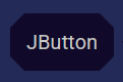
Notice its unique “snipped corner rectangle” image.
How do you code this? Just like you normally do in Java.
JButton jButton = new JButton("JButton");So, all of your JButton-s now have the exact new appearance and mouse interactivity, just by installing your custom LookAndFeel. All you do is tell Java Swing’s UIManager to install your LookAndFeel.
NebulaSoftwareLookAndFeel nebulaSoftwareLookAndFeel = new NebulaSoftwareLookAndFeel();
UIManager.setLookAndFeel(nebulaSoftwareLookAndFeel);
The possibilities of what you can do quickly grow as you create the base UI components. For example, our custom LookAndFeel replaces JLabel with its own that allows for vertical text. Thus, our JButton can get vertical text by using that JLabel.

Don’t stop there. Do whatever you can dream up.
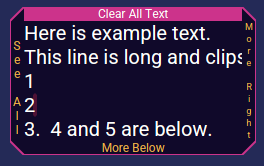
Here is an example of a JTextArea. See how it allows for mouse hotspots. The top shows a clickable “Clear All Text” when moused over. The left shows a vertical JLabel that, when clicked, shows all the text in a popup for when your JTextArea has clipped text due to its size. Text appears to the right or bottom to indicate to the user that there is text in that direction that isn’t visible.
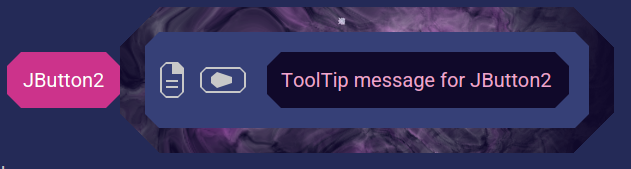
Define your own JToolTip that optionally includes buttons to open a help document or video.
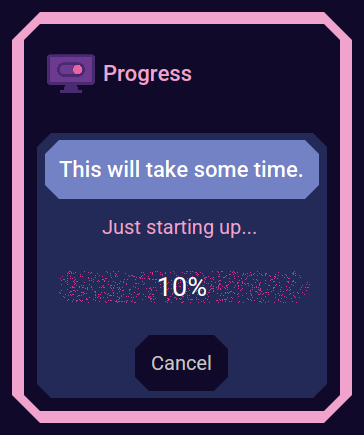
Create a unique ProgressMonitor that fills in the progress area with randomly placed pixels until all pixels are filled at 100%.
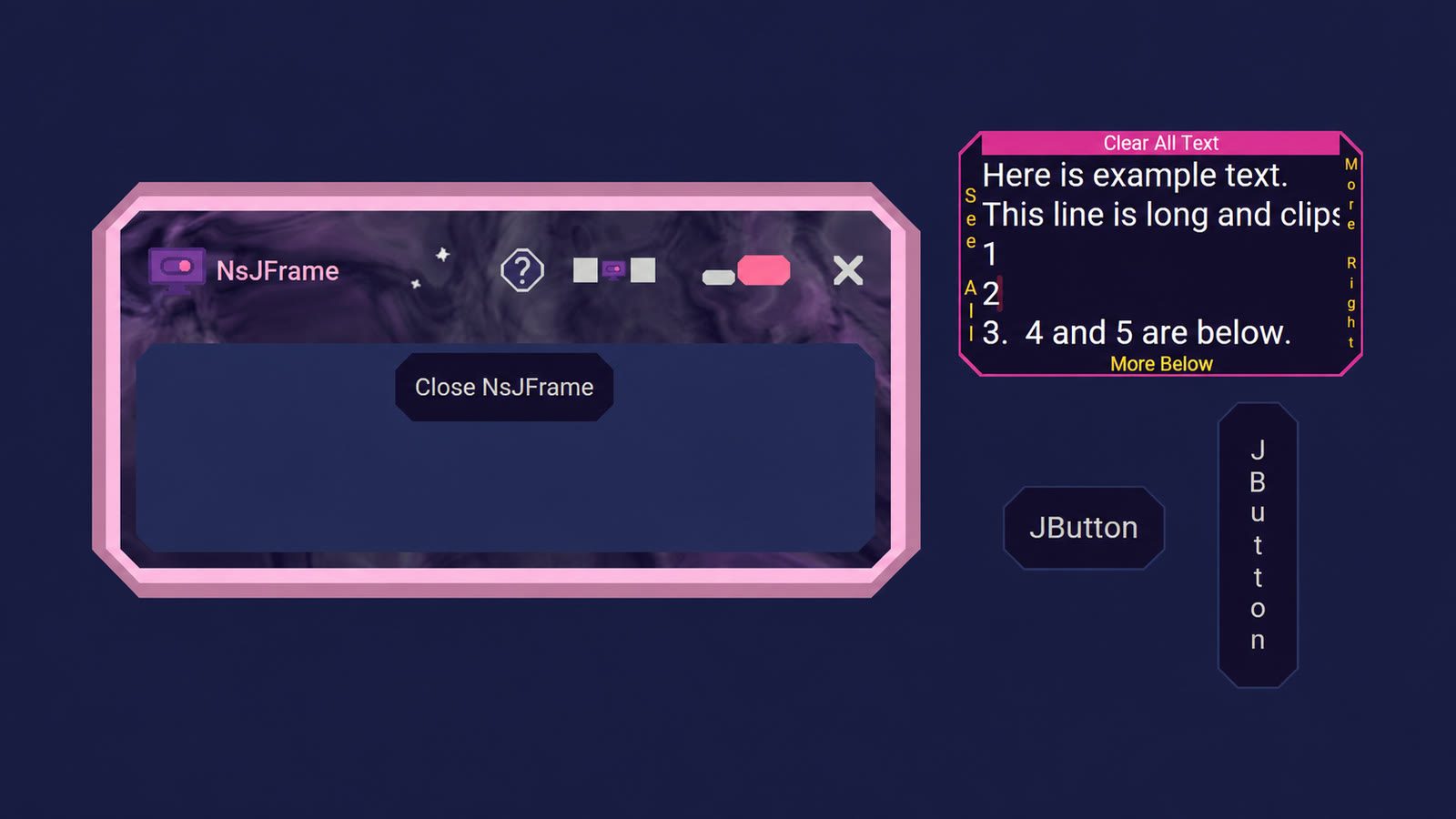
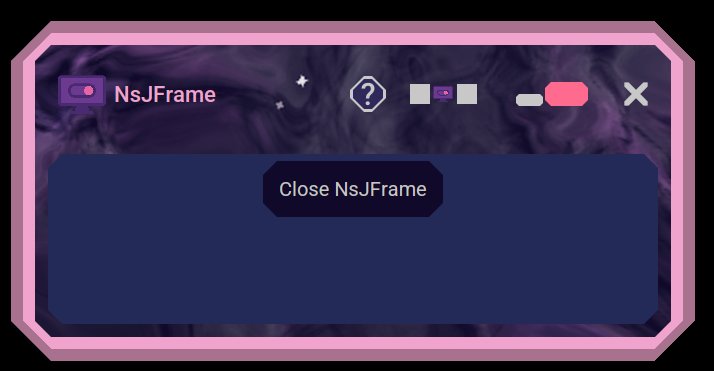
Keep going. What about a new look for JFrame? No problem. This JFrame has an animated background and snipped corners, can be resized and moved from any edge, and replaces the traditional close, expand, and minimize buttons.
Now you have seen the possibilities, but how much work does it take, and is it worth the effort? A single developer spent about 3 months replacing all the UI with very advanced look and interactivity features. Less effort could be spent to get a custom UI that isn’t as elaborate and yet still gives you a UI look that is all your own.
Besides the improvements in appearance and functionality, what other benefits can be achieved? In the NebulaSoftwareLookAndFeel, the baggage and overhead of BasicLookAndFeel were dropped and only what was needed and desired was added. The UI therefore ended up being extremely fast and highly responsive. For example, the entire Java application appears to the user in less than 2 seconds after the application icon is clicked. Dragging a scrollbar back and forth keeps up with the content extremely well. Dragging the full content window around is very snappy, even with a 30 frames per second JFrame background animation running. All much faster than BasicLookAndFeel was able to achieve.
Are you interested in writing your own LookAndFeel but concerned about investing a lot of time and effort without assurances of the benefits you will achieve? Then explore the demonstration videos here Nebula Software UI Demonstration Videos
Or even better, download and play with an application that implements NebulaSoftwareLookAndFeel. Try Nebula Software’s DisplaySwitcher for free. See if its UI operates on your computer as fast as it does on mine. Then you can decide for yourself whether creating your own custom LookAndFeel is worth the effort and bring a more modern appearance to your Java desktop applications.
Found a mistake, or something to add? Edit this page on GitHub

Boyd Edmondson
Boyd Edmondson, Owner of Nebula Software, has been providing commercial custom software solutions since 1992, including all aspects of design, development, implementation, and maintenance.