
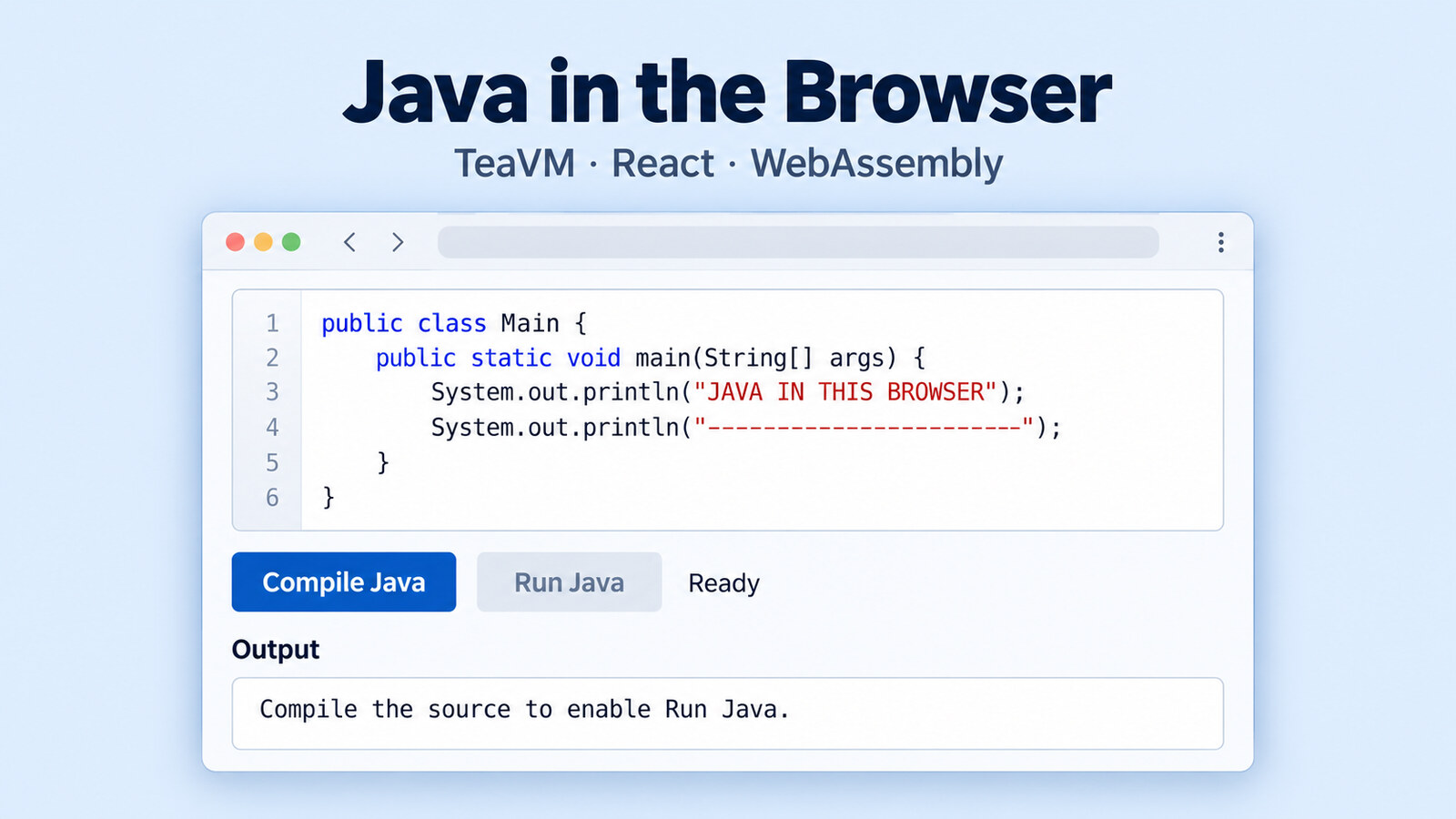
Run Java in the Browser with TeaVM
There’s something satisfying about editing a line of Java on a web page, clicking Run, and seeing the result appear right there in the browser. I use this approach for the live Java snippets at nablatensor.com/learn and for source code used to bootstrap nablatensor.com/quantlab. In this article, I’ll explain how the pieces fit together and walk you through a React app you can run yourself.
From Java source to a result
TeaVM compiles Java bytecode into JavaScript or WebAssembly for the browser. To let readers edit and compile the examples, I use teavm-javac, which brings a Java compiler into the browser as well. Compilation happens directly in the reader’s browser: the edited source is sent to a Web Worker in the same tab, without sending a compilation request to a server.
Java source in the editor
        ↓
javac and TeaVM in a browser worker
        ↓
WebAssembly program
        ↓
output on the page
The worker handles compilation outside the page’s main thread, so the editor stays responsive. React sends the source to the worker and displays the compilation status and program output. On NablaTensor, the worker also loads the project’s JAR files so the snippets can use its numerical library. You can see that integration in the site’s source code.
What TeaVM + javac cannot do. TeaVM provides a subset of Java’s class library. Code that relies on JNI, runtime class loading, or unrestricted reflection needs changes before it can run in the browser. Browser code also cannot open arbitrary files on a visitor’s computer or read their shell environment. TeaVM’s overview explains these limits.
Other compilers that run in the browser. CheerpJ’s JavaFiddle runs
javacand then executes the compiled program in the browser; its source shows both calls. With GraalVM’s WebAssemblyjavacdemo, you can compile Java source into JVM bytecode directly in the browser, then download or inspect the result. Both perform the compilation step on the reader’s device.
Try the small app
The companion React/Vite app has one editable Java file and two main actions: Compile Java and Run Java. The Run Java button becomes available after compilation succeeds. A Stop button lets you interrupt compilation or execution while keeping your edited source. Compile again after stopping to run the program. With Node.js 20.19+ or 22.12+, clone the repository and start the app:
git clone https://github.com/petrpravda/teavm-compilation-example.git
cd teavm-compilation-example
npm ci
npm run dev
If you already have a clone, start from its root folder and run the two npm commands. Open the local URL printed by Vite, then click Compile Java followed by Run Java.
The Java program lists system properties and checks familiar environment variables such as JAVA_HOME and OS. It then reads the locale and time zone, counts primes below 10,000, and draws a tiny Mandelbrot set. Clicking Compile Java sends the source to the worker, which produces WebAssembly. Clicking Run Java executes the compiled program and sends its text output back to React.
Here are a few lines of output from running the app in Chrome:
Java and OS system properties
  java.io.tmpdir = /tmp
  java.version = 21
  java.vm.version = 21
  os.name = TeaVM
  user.home = /

Java and OS environment variables
  (none of the selected names)

A little real Java work: primes below 10,000
  primes found = 1229
  largest = 9973

A tiny Mandelbrot set, calculated in Java
  ...@...@@@@@@@@@...
TeaVM’s Java class library reports Java 21 in these properties. The output also shows the environment available to a Java program running in the browser: os.name is TeaVM, and none of the selected environment variables are present. Edit the source to change the prime limit or the fractal’s size, then run it again.
That is the appeal of this setup for a tutorial: readers can read, run, and modify Java code in the same place.
Found a mistake, or something to add? Edit this page on GitHub

Petr Pravda
Petr Pravda is an independent Java developer. Open-Source contributor to the nablatensor project. Petr is enthusiastic about ML and accelerated computing.