


How to Customize JaCoCo Report Styling in Your Java Project
- February 13, 2026
- 4 min read
JaCoCo is the go-to code coverage tool for Java projects. It integrates seamlessly with Maven, generates detailed HTML reports, and works out of the box. But let's be honest — the default reports look like they were designed in 2008, because they were.
If you're publishing coverage reports as part of your project documentation (on GitHub Pages, for example), you probably want them to match your site's look and feel. The good news: it's entirely possible. The bad news: JaCoCo offers zero built-in support for CSS customization.
In this post, I'll walk you through how we themed the JaCoCo reports in the Copilot SDK for Java project to match our Maven site design — and how you can do the same.
The Problem
JaCoCo generates standalone HTML reports that reference their own jacoco-resources/report.css via a `` tag. There's no plugin configuration, no skin system, no hook to inject your own CSS. The generated HTML looks like this:
<link rel="stylesheet" href="jacoco-resources/report.css" type="text/css"/>
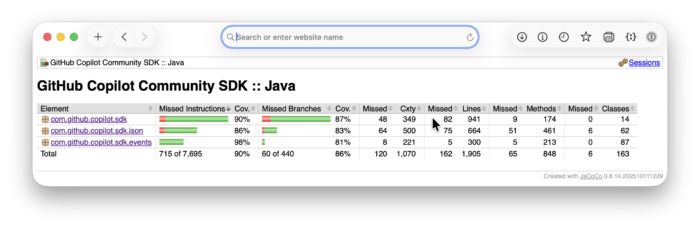
That report.css controls everything: table styling, source code highlighting, coverage bar colors, breadcrumbs, typography. If you want to change the look, you need to replace that file after JaCoCo generates it.
Here is how the default CSS looks like:
The Strategy: CSS Overlay
The approach is simple: let JaCoCo generate its reports with the default CSS, then overwrite report.css with your custom version. We do this at two levels:
- During
mvn site— a Maven Resources Plugin execution copies our CSS after JaCoCo finishes - During CI deployment — a workflow step overlays the CSS across all versioned documentation directories
Step 1: Create Your Custom report.css
Start by grabbing JaCoCo's default report.css. You can find it in target/site/jacoco/jacoco-resources/report.css after running mvn site with coverage data, or in the JaCoCo source code.
Place your customized version at:
src/site/jacoco-resources/report.css
Here's what ours looks like — a light theme with rounded cards, GitHub-style colors, and a system font stack:
/* ===== Custom JaCoCo Report Theme ===== */

body, td {
  font-family: -apple-system, BlinkMacSystemFont, 'Segoe UI', Roboto, sans-serif;
  font-size: 10pt;
  color: #24292f;
}

body {
  background: #f6f8fa;
  margin: 0;
  padding: 20px;
}

/* Breadcrumb navigation */
.breadcrumb {
  background: #fff;
  border: 1px solid #d0d7de;
  border-radius: 10px;
  padding: 10px 16px;
  margin-bottom: 20px;
}

/* Coverage table */
table.coverage {
  border-collapse: separate;
  border-spacing: 0;
  border: 1px solid #d0d7de;
  border-radius: 10px;
  overflow: hidden;
  width: 100%;
  background: #fff;
}

table.coverage thead {
  background: #f6f8fa;
}

table.coverage thead td {
  padding: 10px 14px;
  border-bottom: 2px solid #d0d7de;
  font-weight: 700;
}

table.coverage tbody td {
  padding: 8px 10px;
  border-bottom: 1px solid #eaeef2;
}

table.coverage tbody tr:hover {
  background: rgba(102, 126, 234, 0.04) !important;
}

/* Source code coverage highlights */
pre.source span.fc  { background-color: #dafbe1; }  /* fully covered - green */
pre.source span.nc  { background-color: #ffeef0; }  /* not covered - red */
pre.source span.pc  { background-color: #fff8c5; }  /* partially covered - yellow */
You can see the full file in our repo: src/site/jacoco-resources/report.css.
Important: You must include the element icon classes (
.el_package,.el_class,.el_method, etc.) and the sortable header classes (.sortable,.up,.down) in your custom CSS — they reference GIF images that JaCoCo generates alongside the report. Omitting them breaks navigation icons and column sorting.
Step 2: Overlay CSS During Maven Build
Add a copy-resources execution to your maven-resources-plugin configuration in pom.xml. The key is using phase: site so it runs after the JaCoCo reporting plugin generates its default CSS:
<plugin>
    <groupId>org.apache.maven.plugins</groupId>
    <artifactId>maven-resources-plugin</artifactId>
    <executions>
        <execution>
            <id>overlay-jacoco-css</id>
            <phase>site</phase>
            <goals>
                <goal>copy-resources</goal>
            </goals>
            <configuration>
                <outputDirectory>
                    ${project.reporting.outputDirectory}/jacoco/jacoco-resources
                </outputDirectory>
                <resources>
                    <resource>
                        <directory>src/site/jacoco-resources</directory>
                        <filtering>false</filtering>
                    </resource>
                </resources>
                <overwrite>true</overwrite>
            </configuration>
        </execution>
    </executions>
</plugin>
See this in context: pom.xml (lines 371–387).
Now when you run mvn site, the custom CSS replaces JaCoCo's default immediately after report generation.
Step 3: Handle CI Deployment (Optional)
If you deploy versioned documentation (like we do — snapshot/, latest/, 1.0.8/, etc.), you need to overlay the CSS for all version directories, not just the one Maven just built.
In our GitHub Actions deploy workflow, we add a step after all version builds complete:
- name: Overlay custom JaCoCo CSS
  run: |
    cd site
    for dir in */jacoco/jacoco-resources; do
      if [ -d "$dir" ]; then
        cp ../src/site/jacoco-resources/report.css "$dir/report.css"
        echo "Overlaid JaCoCo CSS in $dir"
      fi
    done
See the full workflow: deploy-site.yml.
Watch Out: Output Directory Paths
This is the gotcha that caught us. JaCoCo has two plugin configurations in a typical Maven project, and they output to different directories:
| Context | Plugin section | Default output path |
|---|---|---|
| mvn verify | (goal: report, phase: verify) | Configurable (we use jacoco-coverage/) |
| mvn site | (goal: report) | jacoco/ (default) |
When deploying documentation, you typically run mvn site, not mvn verify. So the reports land in jacoco/, not wherever your build plugin is configured to write. Your CSS overlay must target the same path the reporting plugin uses. If they're mismatched, you'll end up with custom CSS in an empty directory and default CSS on your actual reports.
The Result
Same data, completely different experience. The custom theme has clean white cards, rounded borders, GitHub-style coverage colors, modern typography.
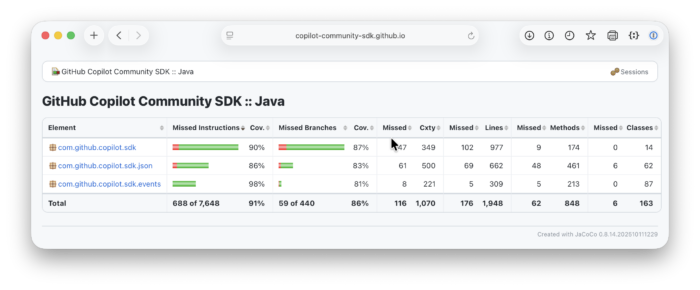
You can see the live result on our documentation site: Copilot SDK for Java — JaCoCo Report.
Quick Start Checklist
- ☐ Run
mvn clean verify siteto generate a JaCoCo report with default CSS - ☐ Copy
target/site/jacoco/jacoco-resources/report.csstosrc/site/jacoco-resources/report.css - ☐ Customize the CSS to match your site's design
- ☐ Keep all
.el_*icon classes and.sortable/.up/.downsort classes — they reference JaCoCo's GIF assets - ☐ Add the
overlay-jacoco-cssexecution tomaven-resources-pluginin yourpom.xml - ☐ If deploying to GitHub Pages with versioned docs, add the workflow overlay step
- ☐ Run
mvn clean verify siteagain and opentarget/site/jacoco/index.htmlto verify
Full Example
The complete implementation is in the Copilot SDK for Java repository:
- Custom
report.css— the full themed stylesheet pom.xmloverlay config — the Maven copy-resources execution- Deploy workflow — CI overlay step for versioned docs
- Live report — the themed output on GitHub Pages
Built with ❤️ by Bruno Borges and GitHub Copilot.
- February 13, 2026
- 4 min read











Comments (1)
Wojtek
1 month agoJust a silly idea but maybe a PR upstream to make the default look better out of the box? :)