
How To Submit Your Next Article On Foojay.io
- May 03, 2022
- 5 min read
Foojay, the place for friends of OpenJDK, is a friendly community of users of the OpenJDK, such as Java developers and Kotlin developers.
It is a collaborative community with tips and insights being shared on a daily basis on Foojay Today.
But how to get started and begin publishing your content? We use WordPress, which has several advantages, notably that everyone knows WordPress. (In a perfect world, we'd be using something different and Java-based and anyone with an alternative available in Java or who wants to work on that with us, speak up!)
However, the Foojay.io WordPress is not just any WordPress. It has been extended by the brave Foojay.io Development Team in Ukraine. (Read more about them here. Hire the Yelk Team. They're great.) Possibly the Foojay.io WordPress is the most developer-friendly WordPress you have ever encountered, including, for example, built-in support for Markdown and AsciiDoc.
Jakarta EE 11: Beyond the Era of Java EE
This user guide provides a brief history of Java EE/Jakarta EE and a detailed overview of some of the specifications that will be updated in Jakarta EE 11.
Get Started
Here's the complete guide to publishing or republishing your content on the Foojay.io WordPress!
Writing a Post
- Get started by joining the Foojay community on Slack, go to the #random channel and say a bit about who you are how you'd like to collaborate with the friends of OpenJDK community (maybe you'd like to share content on foojay.io/today, maybe you'd like to just hang out and chat with other Java or Kotlin users, etc), then go to the #foojay-site-content channel and ask for your login credentials, if you'd like to blog/share content on foojay.io/today.
- Login to the WordPress: foojay.io/wp-admin.
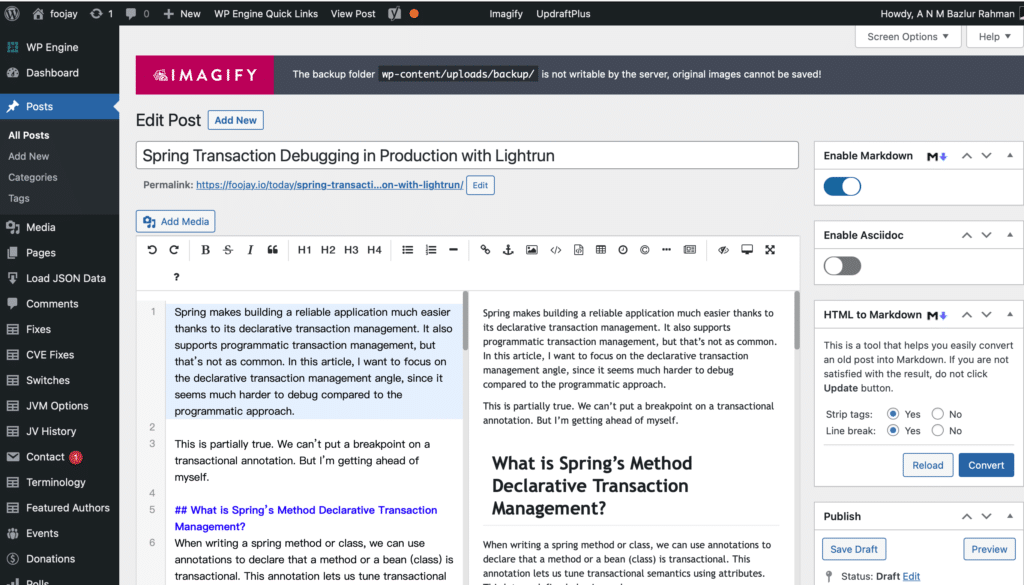
- Create your post, as shown below, after clicking Posts in the navigation bar on the left or the menubar along the top.
- Write your article, click Save Draft. Once you have saved a draft, you can disable Markdown if you prefer the WordPress block editor. See the Tips and Tricks below, especially when using code blocks in Markdown... Thanks!
- Make sure to check the preview of your article!
Publishing a Post
Once your post is ready, you have saved it as a draft, and checked the preview, you have these options:
- Keep it in draft: Go to the Foojay community on Slack > #foojay-site-content channel, and say "Hurray, I'm done, <your article> is ready to publish!" One of the editors working on Foojay.io will then follow-up, and if still needed, tweak a bit and schedule the article to be published.
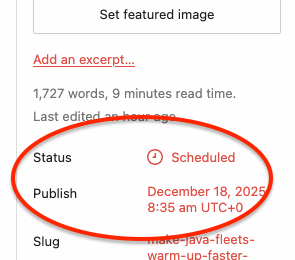
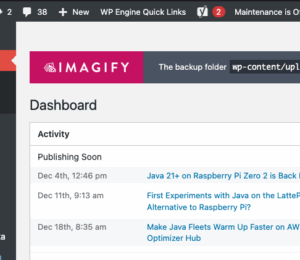
- Schedule yourself: Check the homepage of Foojay.io for the list of scheduled posts. You can also find this info, when logged in, on the WordPress Dashboard. Find a date without scheduled posts, and use this to schedule your post yourself. Go to the Foojay community on Slack > #foojay-site-content channel, and say "I scheduled <your article> to be published on <date>."
- Publish immediately: If your post is urgent, e.g. release notes, an event that's happening, etc. you can also publish it as soon as you're finished. Go to the Foojay community on Slack > #foojay-site-content channel, and say "This was urgent, so I published <your article>."
Tips and Tricks
Working with Code Blocks
Working with code blocks can be a bit painful if you don't know how they work, and you might be surprised by how they're initially rendered. Some tips:
- Disable Markdown and, optionally, Asciidoc, then review in WYSIWYG.
- Take note of the code snippets and whether they are rendered correctly.
- Top right above the article, you see "Save Draft", "Preview", and "Publish". Click "Preview" and then click "Preview in new tab'"
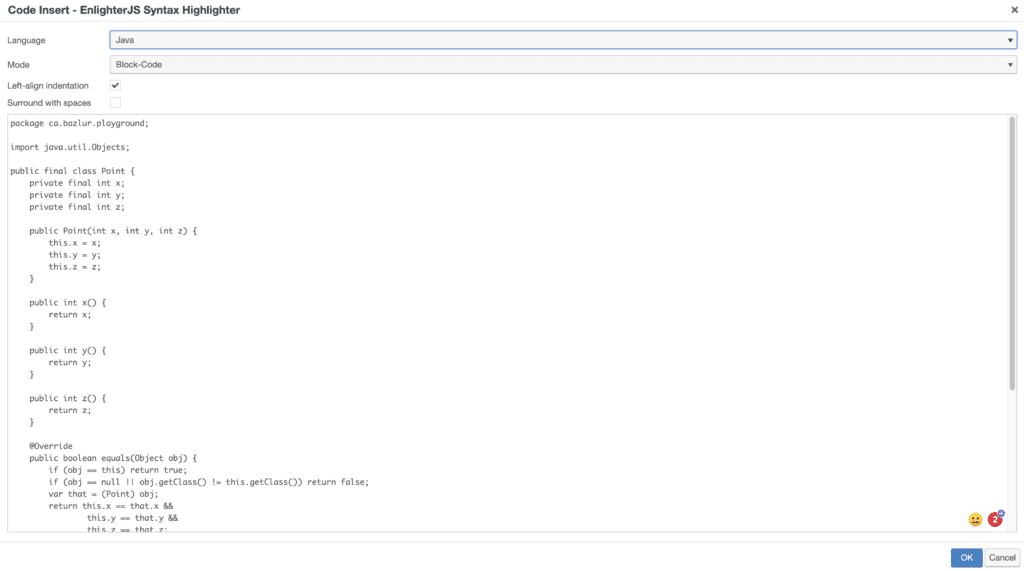
- Scroll down, look at the code, if it looks horrible (i.e., no syntax colors), go back to the article, to the place where the code is, copy the code from the preview, click "Code Insert" and select the Language from the drop-down (e.g., Java), paste in the code, click OK.
- Alternatively, use the “Convert to blocks” option at the top of the article. This will convert all Markdown code blocks to the better readable format. After that you only need to indicate the highlight type (e.g. "Java", "Bash", ...).
Writing Tip
Shorten your long paragraphs. Even one sentence per paragraph is better than multiple long sentences that form long, unscannable paragraphs. Browse the text to make sure everything is readable.
Featured Image
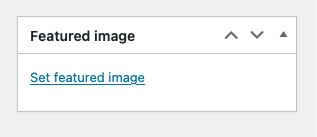
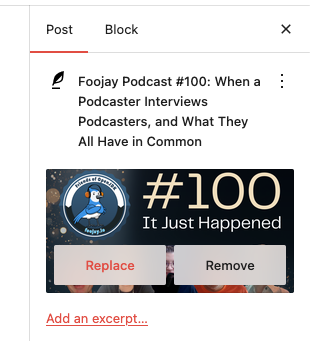
Add a feature image, please! The news-pages shows each article with an image, and that image is also a preview when sharing your article on social media. Depending on whether you use Markdown writing or WordPress blocks, you will find a section in the right bar for the "Featured image" or below the "Post" title.
Related Posts
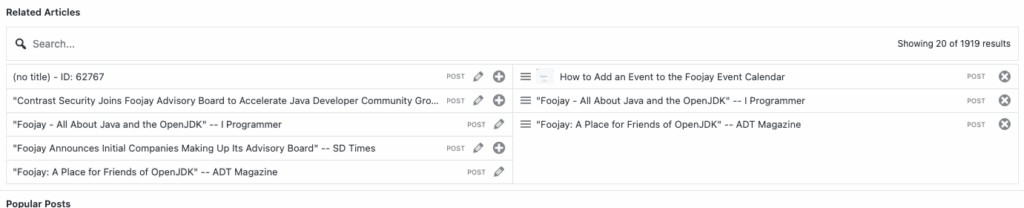
Add some Related Articles at the end of the article, this will help people to find more of your or related content:
Categories and Homepage
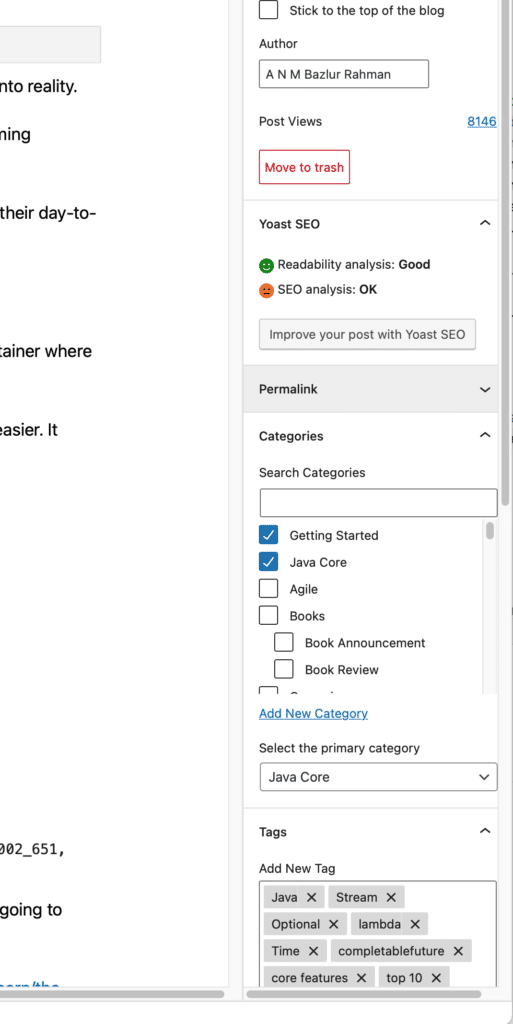
All content on Foojay is grouped into categories. This is shown on the homepage and other sections of the website. Also crucial for a post's preview box is a featured image. Both of these can be defined on the right-hand side bar, in the Post tab:
- Pick a few categories.
- Add a featured image, which is nice to have, though not mandatory.
Search Engine Optimization
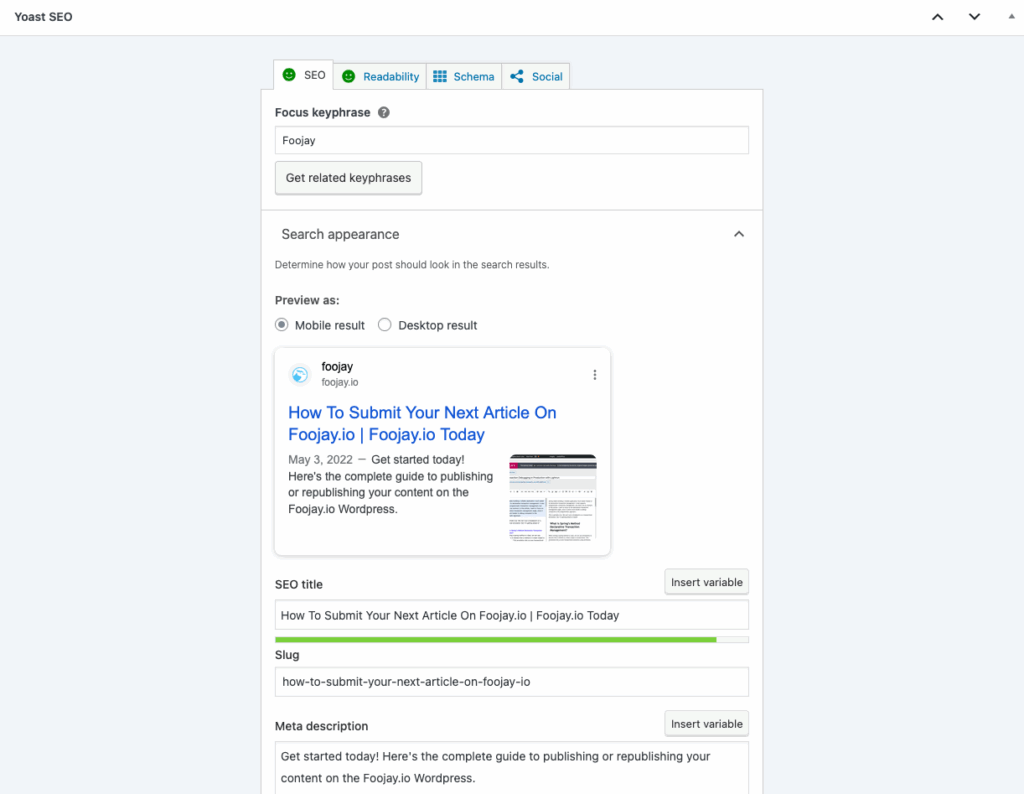
Use these steps to make sure your article is indexed correctly for search engines.
- Scroll down to the section "Yoast SEO" and add the title and a (optional) short description, as shown below.
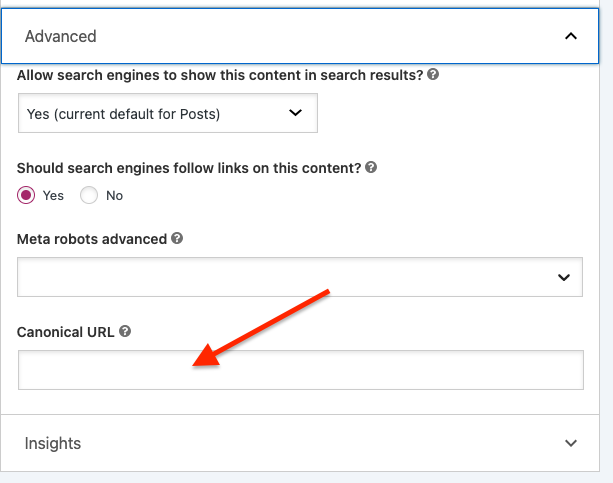
- Is this a cross-post of an article that was already published on another website earlier? Make sure to add a canonical link. It will tell search engines where to find the original article. You can also find this at the bottom of the editor page, in the "Yoast SEO" section > Advanced > Canonical URL. Fill in the full URL to the original article in this field.
Code Blocks Video
- May 03, 2022
- 5 min read

A N M Bazlur Rahman is a Software Engineer with over a decade of specialized experience in Java and related technologies. His expertise has been formally recognized through the prestigious title of Java Champion. Beyond his professional commitments, Mr. Rahman is deeply involved in community outreach and education. He is the founder and current moderator of the Java User Group in Bangladesh, where he has organized educational meetups and conferences since 2013. He was named Most Valuable Blogger (MVP) at DZone, one of the most recognized technology publishers in the world. Besides DZone, he is an editor for the Java Queue at InfoQ, another leading technology content publisher and conference organizer, and an editor at Foojay.io, a place for friends of OpenJDK. In addition, he has published five books about the Java programming language in Bengali; they were bestsellers in Bangladesh. He earned his bachelor's degree from the Institute of Information Technology, University of Dhaka, Bangladesh, in Information Technology, majoring in Software Engineering. He currently lives in Toronto, Canada.

Frank Delporte is a Java Champion, Java Developer, Senior Technical Writer at Azul, Blogger, Author of "Java Programming for Raspberry Pi - A Hands-On Guide to Electronics and IoT Projects", and Open-Source Contributor for Pi4J, Lottie4J, MelodyMatrix,... Frank writes and talks about Java in business production environments, but also in places people don’t always expect it, on the Raspberry Pi, driving GPIO pins, rendering JavaFX UIs, and running on RISC-V single-board computers.

Geertjan is an open source and Java enthusiast, Java Champion, Apache Member, and leader of the Amsterdam Java User Group.







Comments (0)
No comments yet. Be the first.