


Getting a single value from a device’s state in Home Assistant
- May 31, 2025
- 3 min read
I recently acquired Netatmo smart radiator valves to manage my rooms' temperature remotely. I'm not skilled at manual tasks, but I could easily replace the old thermo-static valves. I then registered the smart ones in the Netatmo app. Finally, I integrated them in my Home Assistant via the dedicated Netatmo integration. Everything was very straightforward.
I noticed that each valve not only allows remote control but also offers a state with several attributes. I wanted to extract the room's temperature indicator from it. It was not as easy as I thought it was, so I want to describe how I managed to achieve it.
- Why Home Assistant?
- The Home Assistant model
- Replace Philips Hue automation with Home Assistant’s
- An example of HACS: Adaptive Lighting
- The Home Assistant companion app
- Cloudflare Tunnel for Home Assistant
By default, the Netatmo valve displays a multi-valued state. To check, go to the Developer Tools > States menu. You can use a filter to find the device.
| Entity | State | Attributes |
|---|---|---|
| climate.spare_bedroom + Valve Spare Bedroom |
auto | hvac_modes: auto, heat + min_temp: 7 + max_temp: 30 + target_temp_step: 0.5 + preset_modes: away, boost, frost_guard, schedule + current_temperature: 14 + temperature: 7 + hvac_action: idle + preset_mode: frost_guard + selected_schedule: Unknown 67ab635c2dd1afb1e601a8c2 + heating_power_request: 0 + attribution: Data provided by Netatmo + friendly_name: Valve Spare Bedroom + supported_features: 401 |
The problem is that the above attributes are not readily usable. We must first extract them individually. For this, we need to create a sensor; head to File Editor and select configuration.yaml. Then, append the following snippet:
template:
  - sensor:
    - unique_id: sensor.spare_bedroom_temperature
      name: "Spare Bedroom Temperature"
      state: "{{ state_attr('climate.spare_bedroom', 'current_temperature') }}" #1
      unit_of_measurement: "°C"
      device_class: temperature                                                 #2
- Match the pair entity-attribute above
- Must be
temperatureto be used as a temperature sensor afterward
Click on Save.
We don't need to restart Home Assistant, but we must reload the configuration. Click on Developer Tools. Then, click on Check configuration. The new sensor should appear in Settings > Entities.
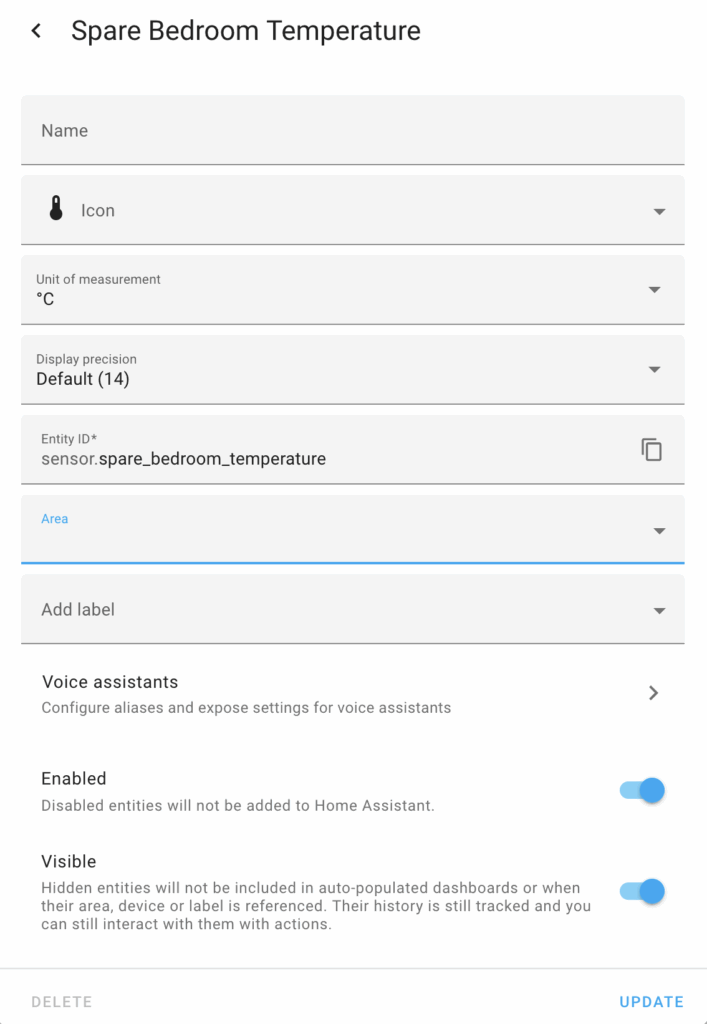
We can now set the Area via the UI to one of the existing areas, in this case, the Spare Bedroom.
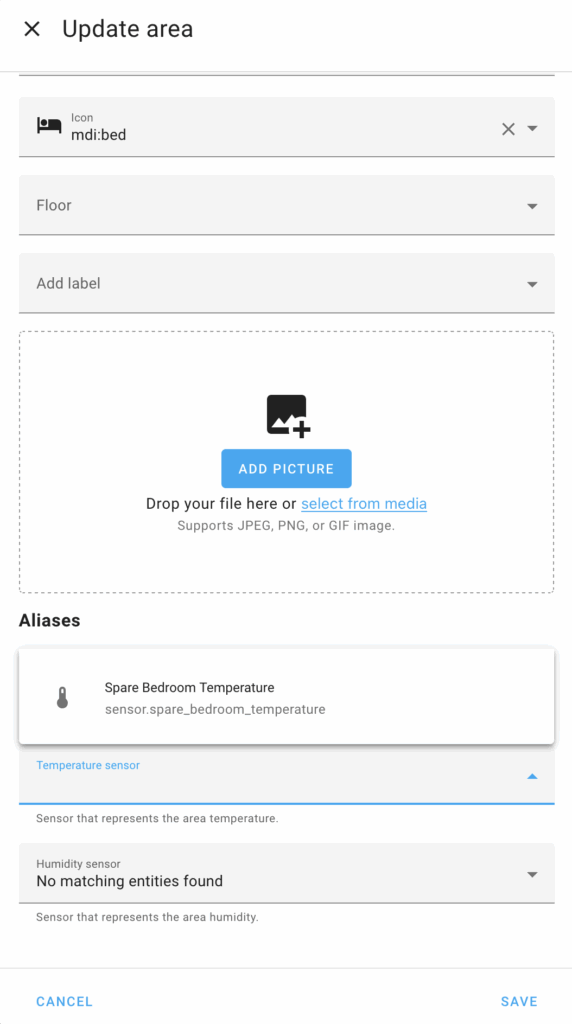
Finally, we can update the Spare Bedroom area in Settings > Area > Spare Bedroom. Set the temperature sensor to the only available item, the sensor we set in the previous steps.
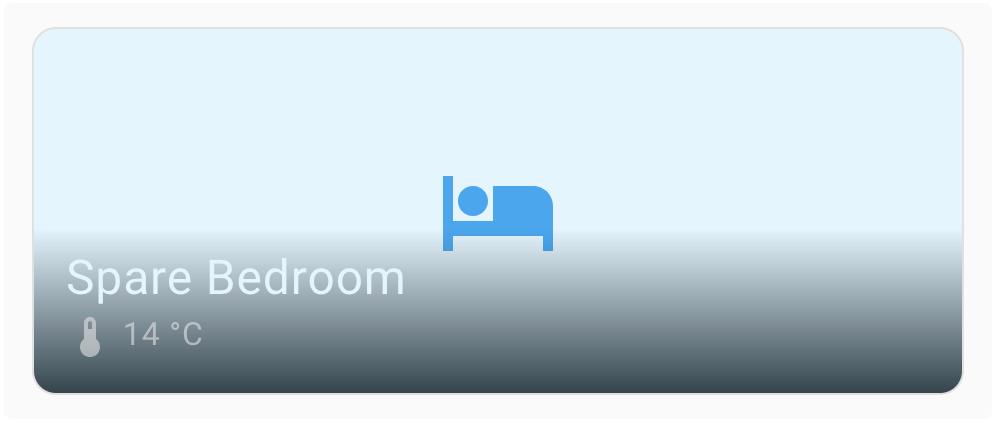
At this point, whenever we add the Area card to a dashboard, Home Assistant displays our newly-created temperature sensor on top of it.
You can use this approach for every State. Check them, and I'm sure you'll get new ideas. For example, every automation has a last_triggered timestamp attribute.
To go further:
Originally published at A Java Geek on May 18th, 2025
- May 31, 2025
- 3 min read

Technologist focusing on cloud-native technologies, DevOps, CI/CD pipelines, and system observability. His focus revolves around creating technical content, delivering talks, and engaging with developer communities to promote the adoption of modern software practices. With a strong background in software, he has worked extensively with the JVM, applying his expertise across various industries. In addition to his technical work, he is the author of several books and regularly shares insights through his blog and open-source contributions.











Comments (0)
No comments yet. Be the first.