
JavaFX Templates for Desktop Applications
- October 15, 2021
- 3 min read
Here on Foojay we already talked about JavaFX write-once-run-everywhere applications and how they can be created on GitHub with Gluon and GraalVM:
- Creating Mobile Apps with JavaFX by Gail Anderson
- Cross-Platform Development in Java with Gluon and GraalVM by Bruno Lowagie
- Native Applications for Multiple Devices from a Single JavaFX Project with Gluon Mobile and GitHub Actions by myself
In this post, we are going to take a look at other different approaches.
Modularized JavaFX Template with Gradle by Gerrit Grunwald
This is a little project on GitHub that can be used as a template for modularized JavaFX projects, based on JDK17. You can import the build.gradle file as a project into your IDE and start the application by using gradlew Main from the command line or from within the IDE.
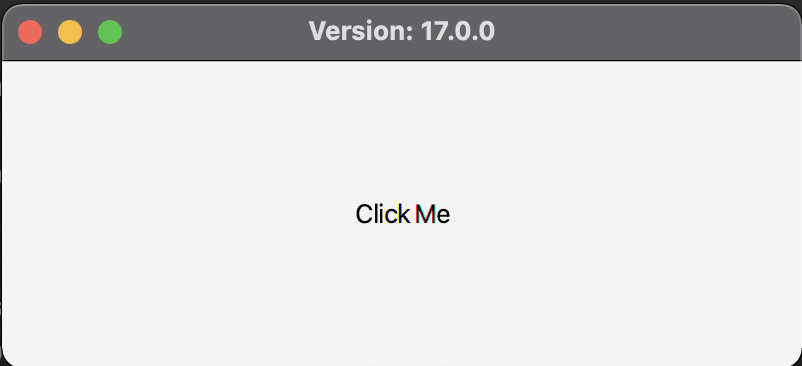
You will find three script files
- build_app_windows.bat
- build_app_macos.sh
- build_app_linux.sh
...which can be used to build native packages and installers on the platform of your choice. If you would like to build a native package on MacOS you need to perform the following steps:
./gradlew clean build
bash build_app_macos.sh
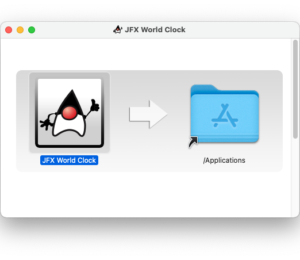
After the script has finished you will find the dmg, the pkg and the app file in the folder
fxmodules/build/installer
In addition the project also comes with a github action in the folder
fxmodules/.github/workflows
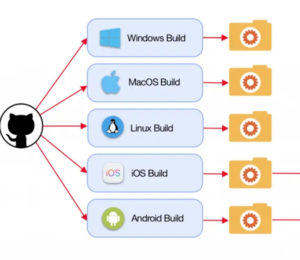
The ci.yml file will build the native packages for each platform on GitHub after each push to the project. The artifacts will be attached to the build so that you can download it from there.
JPackageScriptFX by Dirk Lemmermann and Michael Paus
This project, originally created by Michael Paus was turned into a template project by Dirk Lemmermann. It demonstrates how projects can use scripts to build self-contained, platform-specific executables and installers of their JavaFX applications via the jdeps, jlink, and jpackage tools. Two scripts are included for running builds on Mac/Linux and Windows. The jpackage tool is bundled with the JDK since version 14.
The project in this repository uses a multi-module Maven setup with a parent module containing three child modules. One of these child modules is the "main" module as it contains the main class. This module also contains the build scripts and its target directory will contain the results of the build. The JavaFX application consists of a single-window displaying three labels. The first one shows the currently configured locale and the other two labels get imported from module 1 and module 2 respectively.

The platform-specific versions are created with Maven and this whole process is very well and detailed explained in the README file of the GitHub project.
maven-jpackage-template by Will Iverson
And there is even one more Maven template project we can share here! It generates a custom JVM and installer package for a JavaFX application. It can easily be adapted to work with Swing instead.
The generated installers come in at around 30-40MB. The example source in the project includes demonstrations of several native desktop features - for example, drag-and-drop from the Finder/Explorer, as well as a few macOS Dock integration examples. Removing the code and the demonstration dependencies gets a "Hello World" build size closer to 30MB.
Build with GitHub Actions
All three projects produce the promised platform-specific runtime with GitHub Actions.
- The Gradle-project by Gerrit uses a single action to produce Linux, Windows and Mac versions.
- The Maven-projects have an action file for each platform version
- actions in JPackageScriptFX
- actions in maven-jpackage-templates
Conclusion
Both for Maven and Gradle lovers there are different possibilities to build Java executables and GitHub provides the free tools to do so.
Thanks to Gerrit, Michael, Dirk, Will, and other contributors - who share these kinds of templates - getting started with JavaFX for desktop applications became easier again!
- October 15, 2021
- 3 min read

Frank Delporte is a Java Champion, Java Developer, Senior Technical Writer at Azul, Blogger, Author of "Java Programming for Raspberry Pi - A Hands-On Guide to Electronics and IoT Projects", and Open-Source Contributor for Pi4J, MelodyMatrix, Lottie4J, Sheetmusic4J,... Frank writes and talks about Java in business production environments, but also in places people don’t always expect it, on the Raspberry Pi, driving GPIO pins, rendering JavaFX UIs, and running on RISC-V single-board computers.






Comments (0)
No comments yet. Be the first.